Resubmission of registration application
Steps required to reapply
A message about the rejection of the registration application is sent to your personal account user and his email.In this letter the site operator indicates the reasons for the rejection of the application that will need to be eliminated, so that the application is accepted if it is resubmitted.
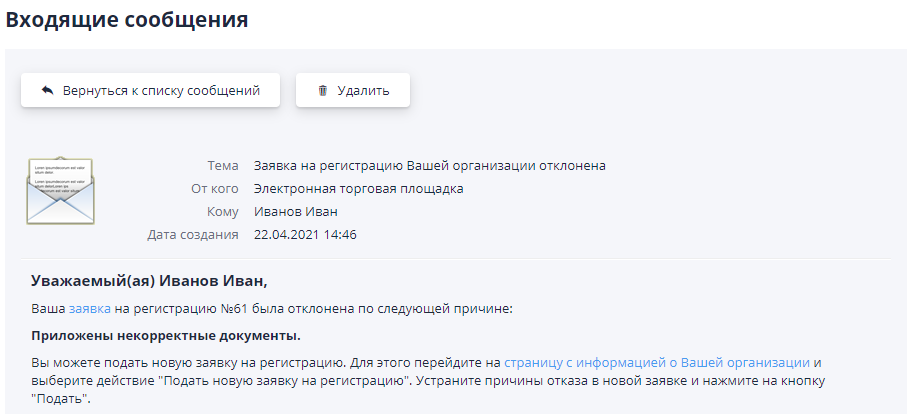
In order to re-apply, you must go to the page "My organization."For example, following a link with its name in the top menu sites:

On the organization’s page, click the “Submit a new application for registration":
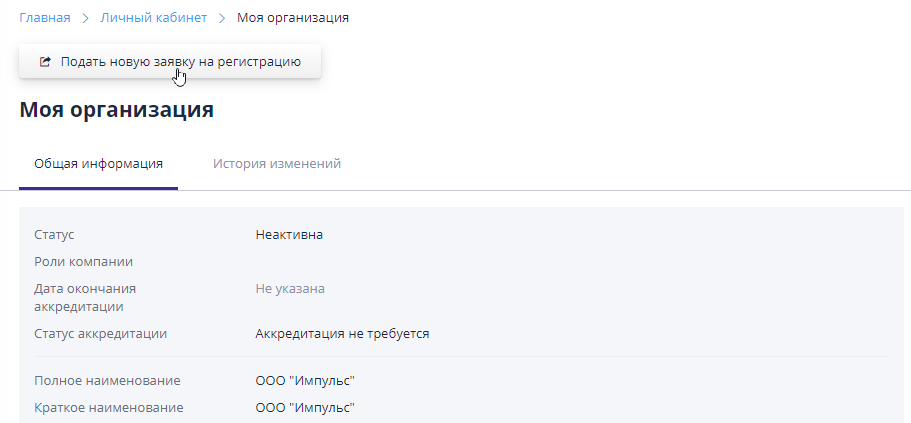
As a result, a new registration application will be created as a copy the last rejected application, with the ability to edit the saved one information.
After all corrections have been made, according to the operator’s comments, you must click the “Submit” button:
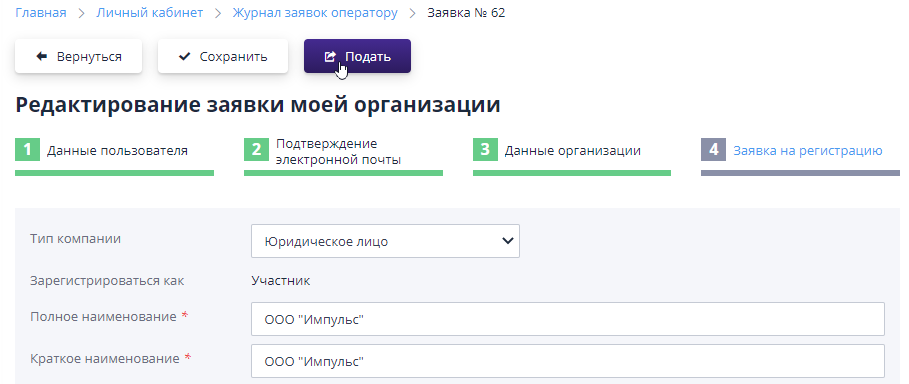
The process of re-applying for registration can be completed the required number of times until the application is accepted by the operator sites.
Actions in the system after successful registration
At the end of the registration process, all tools will be available, necessary to participate in bidding on the ETP.
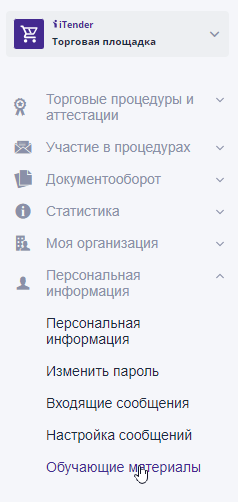
A description of the work at the site is presented in the participant's manual. You can download this document in the side menu section: “Personal information" item "Training materials":
Requirements for the ETP user's workplace
To work on the ETP, the User's employee must have an automated a workplace that is one workstation - a computer or a laptop whose minimum configuration is:
-
Processor, 32-bit (x86) or 64-bit (x64) clocked frequency of at least 1.5 GHz or higher,
-
RAM at least 1Gb (for a 32-bit processor) or 2 GB (for 64-bit processor),
-
Free hard disk space 200 Mb or higher,
-
Monitor with a resolution of 1280x800 or higher,
-
Requirements for installed software:
-
Microsoft Windows 7 Starter or later;
-
CryptoPro CSP version 4.0 and higher for working with a local digital signature;
-
CryptoPro EDS Browser plug-in for working with digital signatures;
-
Browser;
-
Tools for creating documents (MS Office, WordPad);
-
File compression (packaging) tools (RAR, ZIP, WINZIP);
-
PDF file readers (Adobe Acrobat or similar);
For correct operation on the ETP, it is recommended to disable all non-standard browser add-ons (such as Skype, ICQ, etc.), since they use may lead to changes in the structure of the formed electronic documents.
When working with ETP, all pages can be used to view standard browsers: Opera, Chrome, Firefox, Safari and others.