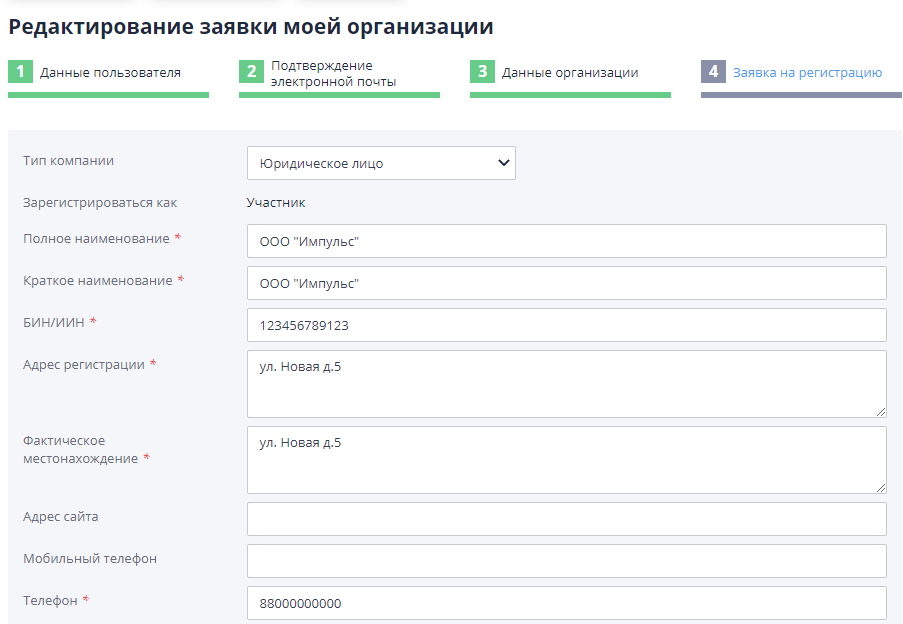
Entering information about the organization
Organization data
At this registration step you need to enter basic information about the organization on behalf of which the user will work in the system. It is necessary to select the legal type of organization (legal entity, individual entrepreneur, individual, European type company or international type of company):
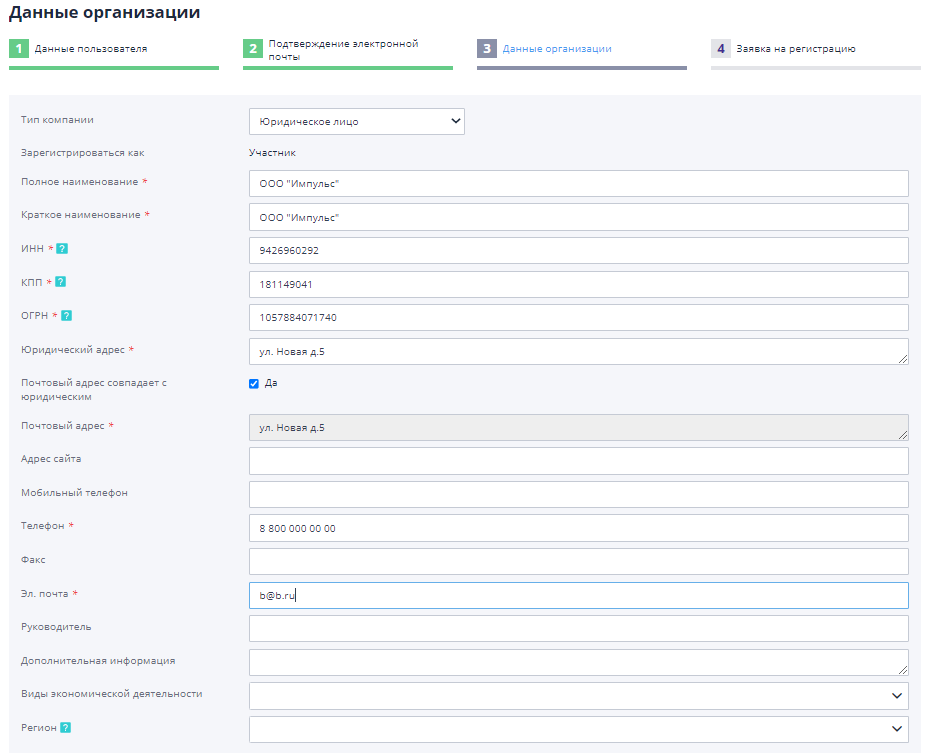
If the system has hints enabled through the DaData service, then after you start entering the name company, the system will offer a choice of existing options and automatically fill in the associated fields such as company details and address.
After filling in all required information, marked with (*), you need to proceed to attaching documents.
Attaching documents
Next, you need to upload the required documents confirming specified information about the organization.Documents from the registration application will be available only to the system operator when reviewing it.
To upload a document in electronic form, you must:
-
Click the “Upload file” button:
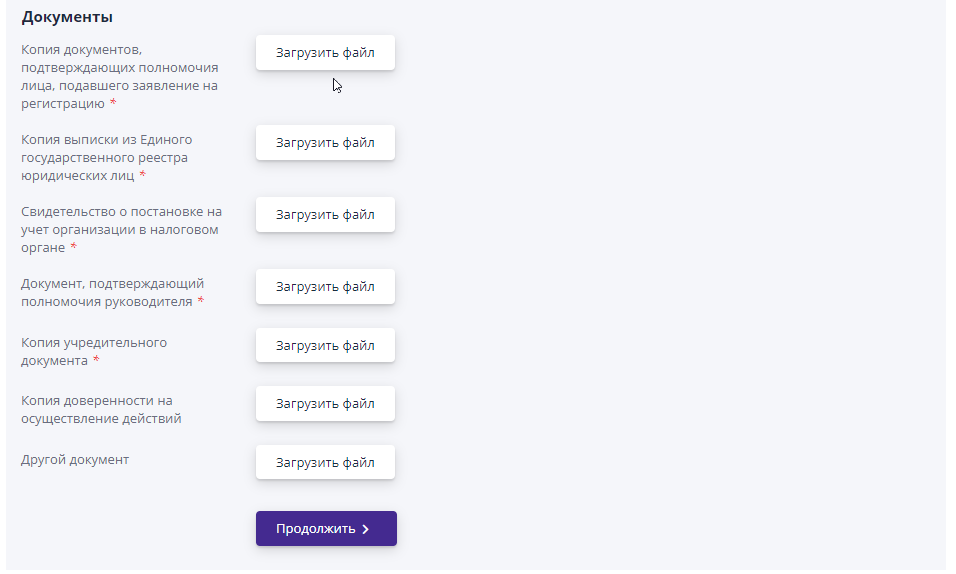
-
Select a file to download with a valid extension, then click the “Open” button.
To download all documents, repeat the described procedure
required number of times.Added files can be deleted by clicking on the “cross” to the right of
file name:

Files will be added to the list of documents of the organization only after review and acceptance of the application by the operator.
After all required fields have been filled in and all required documents have been uploaded, you can proceed to the next registration step, by clicking on the “Continue” button.
If a counterparty with the specified data is already registered on the site, then a warning message will be displayed:
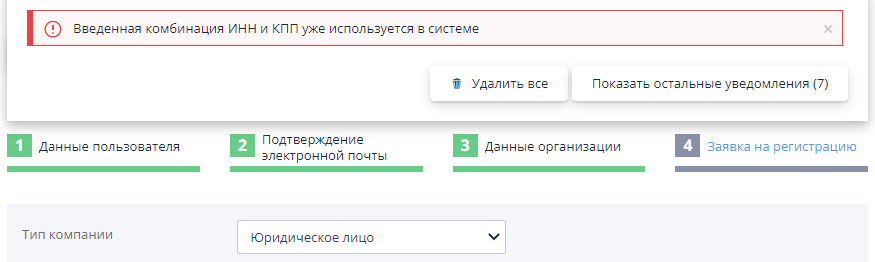
In this case, you should contact your operator for instructions. for further work on the site.
Editing a saved draft application
The registration process can be paused at any time.In the future registration will continue from the step at which it was stopped.
To continue filling out the registration application, you must go to "Registration" link in the left side menu:
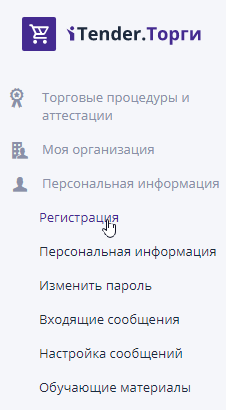
After clicking on the link, a registration application will open at the step at which work was previously suspended: