Certification
Carrying out certification
After registering the participant’s organization in the system, you can conduct it Certification to confirm the list of those declared for registration competencies.Certification in the system can be carried out at any time when it was necessary to certify this or that organization in any area activities.The result of the certification will be admission participant in the certification for the specified type of economic activity.
All information about certifications is divided into journals.
Magazine “My Certifications”
To view all “Certification” procedures created in the system, you must go to the “Organization of trade procedures” menu, “My certifications” item. You can find the required certification using the search filters and by clicking “Search”:
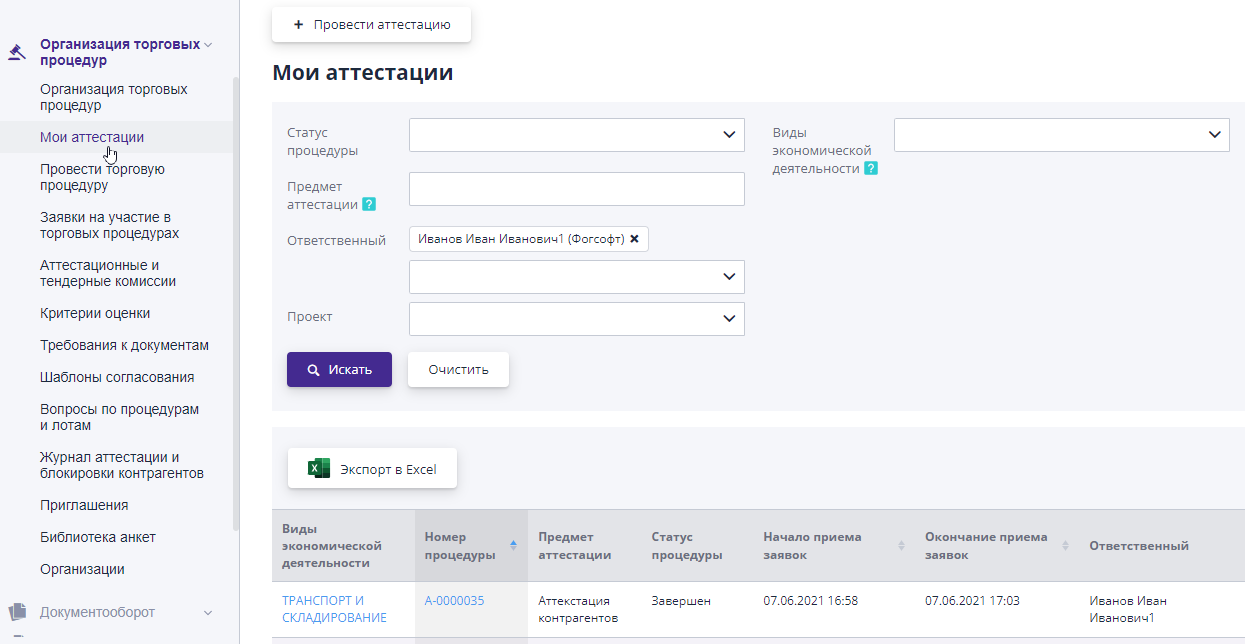
Certification can be in the following statuses:
-
Draft notice - certification, is at the editing stage and not available for viewing by participants.
-
Published - the certification has been published and is available to users systems for review.
-
Acceptance of applications - at this stage, users submit their applications for participation.
-
Canceled - certification was canceled by the organizer.
-
Completed - certification that has been completed.Apply for Participation in this status is impossible.
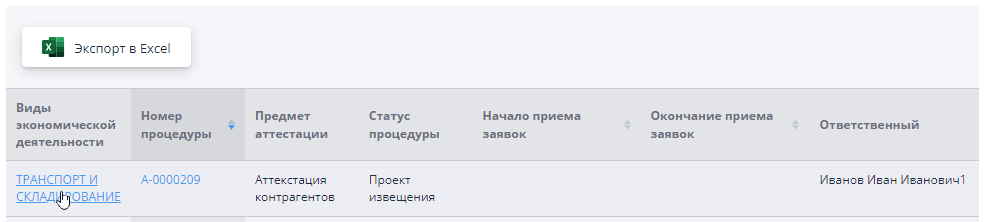
To view the certification, you must follow the link in its number or area of activity:
On the certification page you can view general information, a questionnaire, participant information, comments, related documents and history changes by switching between tabs:
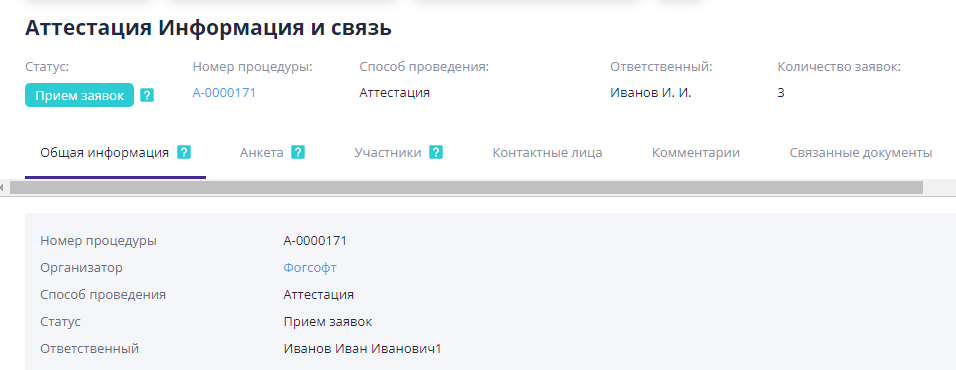
The "General Information" tab contains all the basic information about certification, for example, subject of certification, start and end date of admission applications, documents and tender commission.
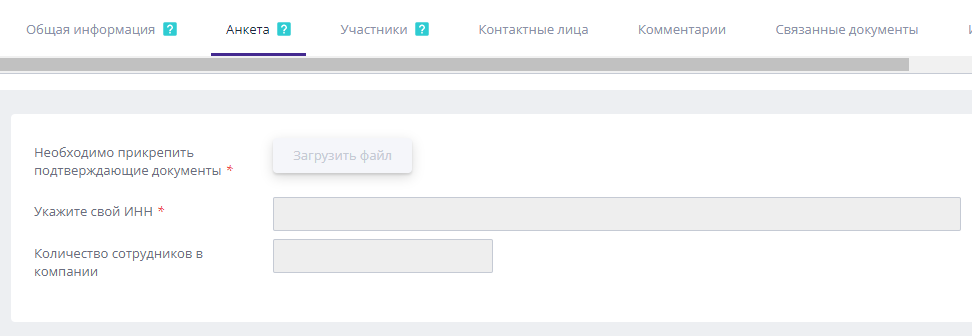
The “Questionnaire” tab contains a questionnaire that participants fill out, applicants for certification:
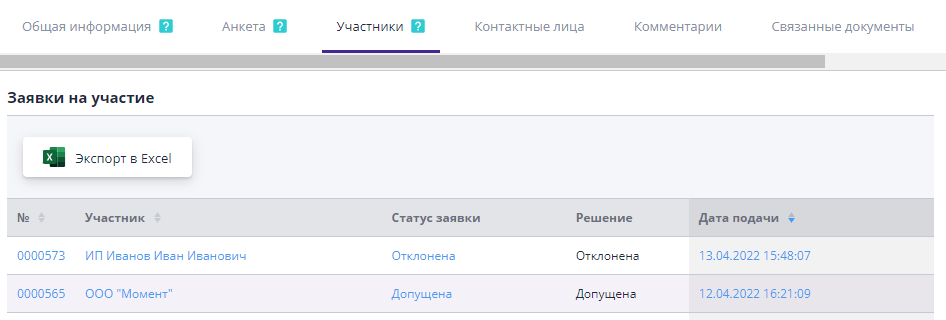
The Participants tab contains a list of users invited or who applied to participate in the certification.
The “Contact Persons” tab displays the employees you can contact contact us with questions and clarifications regarding this procedure.
The “Comment” tab displays all comments left on certification procedure and it is possible to add, change or delete your comment:
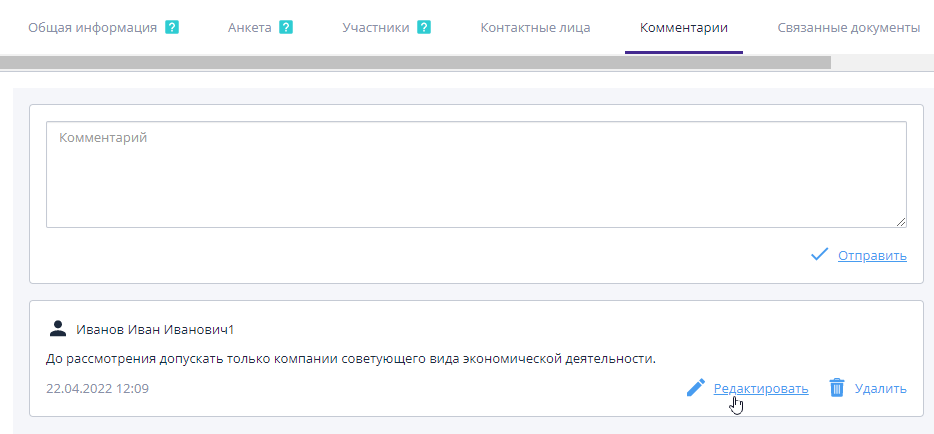
The "Comment" tab is available if the system has comment functionality enabled.
The “Related Documents” tab displays all documents from the journal documents related to this certification.
If the system has document flow functionality enabled, then the tab also has the option add a new document:
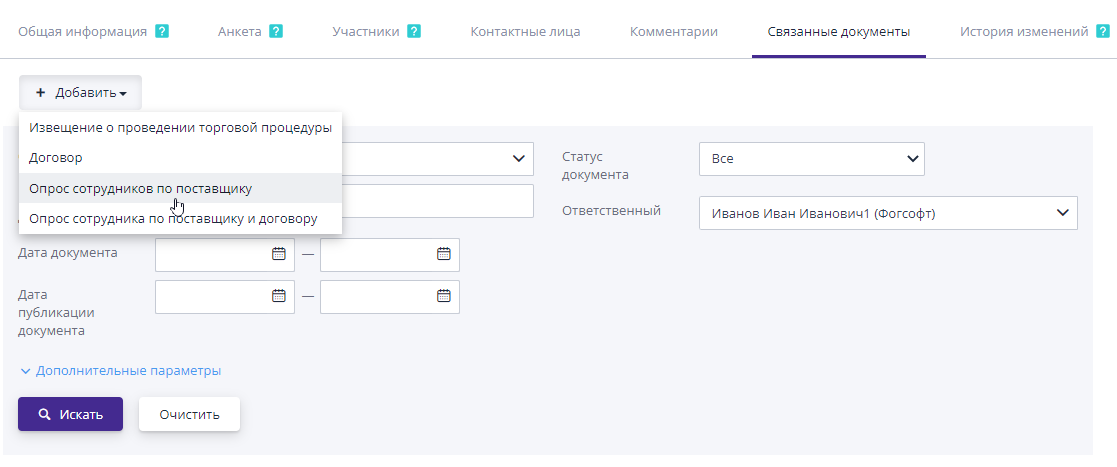
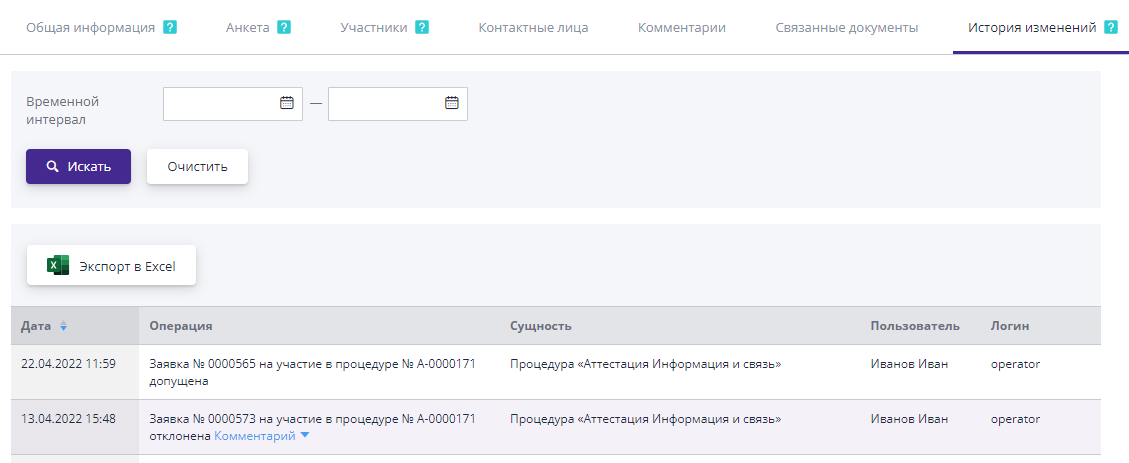
The “Change History” tab displays all changes in the procedure with indicating the user who changed the information and indicating the date and change time.
Log of certification and blocking of counterparties
To view a list of all existing certifications and blocks organizations of participants is necessary in the section “Organization of trade procedures" select the item "Journal of certification and blocking of counterparties":
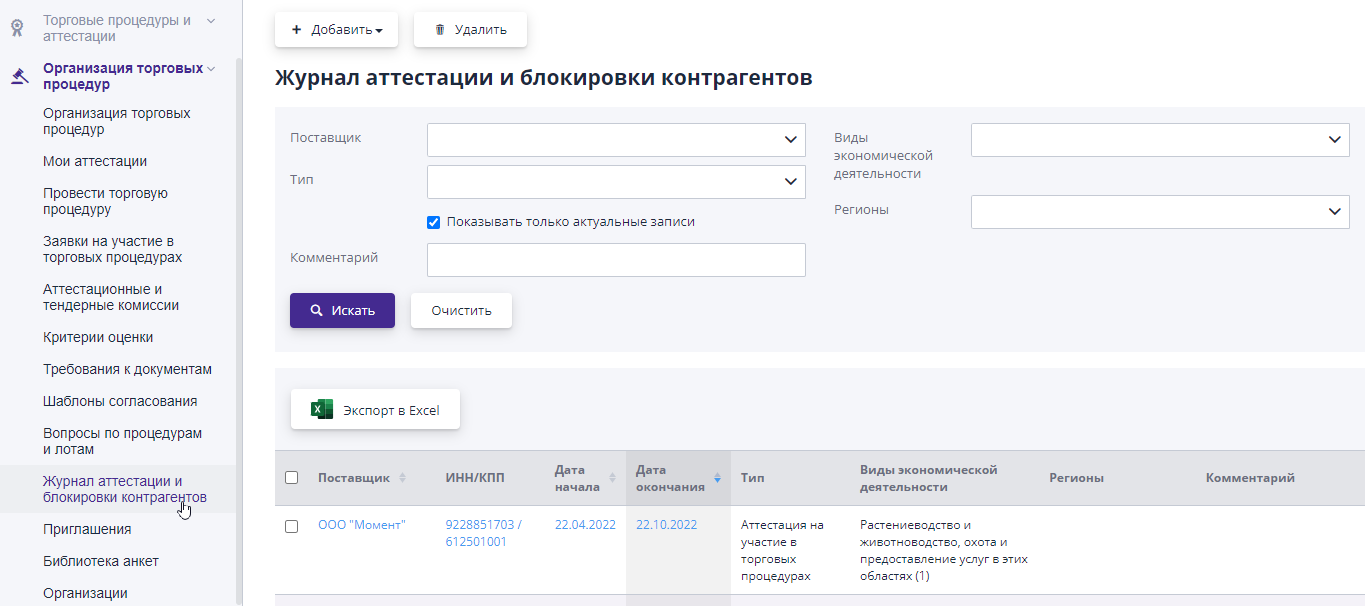
After the organizer has accepted the application for certification of the participant, in this a corresponding entry appears in the log.The record indicates the presence of bidder certification for certain types of activities in the auction, with the specified period of validity of this certification.
If the company blocking functionality is enabled in the system and the company for some reason was added by the organizer to the black list, this information will also be displayed in the log certifications and blockings.Learn more about working with the section “Certification Journal” and blocking of the counterparty" is described in the "Logs" section, item "Certification and blocking counterparties."
Creating an Attestation
There are several options available for creating procedures in the system: creating with scratch and copying existing certification.
Creation from scratch is used if the certification isis carried out for the first time or there is no similar certification on the composition of the data.
Copying is used in case of repeated or if there is similar procedure, the data of which can be partially used so as not to fill them out again.
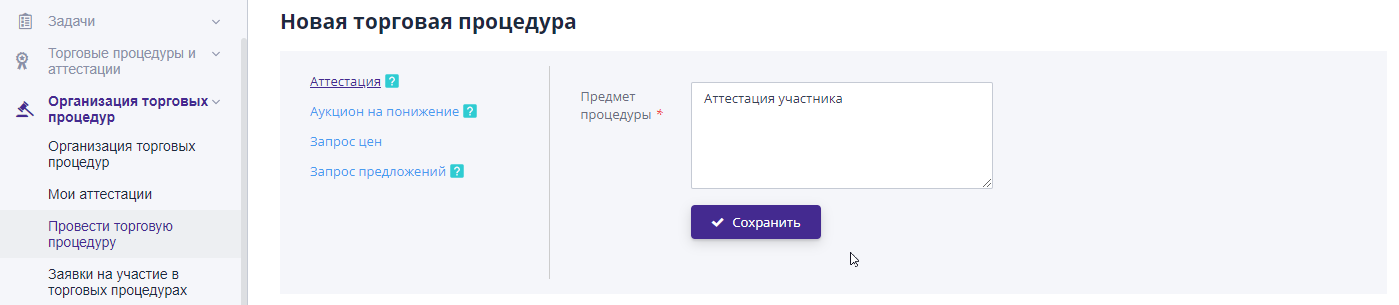
To create a new certification you must go to the section “Organization of trading procedures” and select the sub-item “Carry out trading procedure."On the page that opens, select “Certification” specify the name and click on the "Save" button.
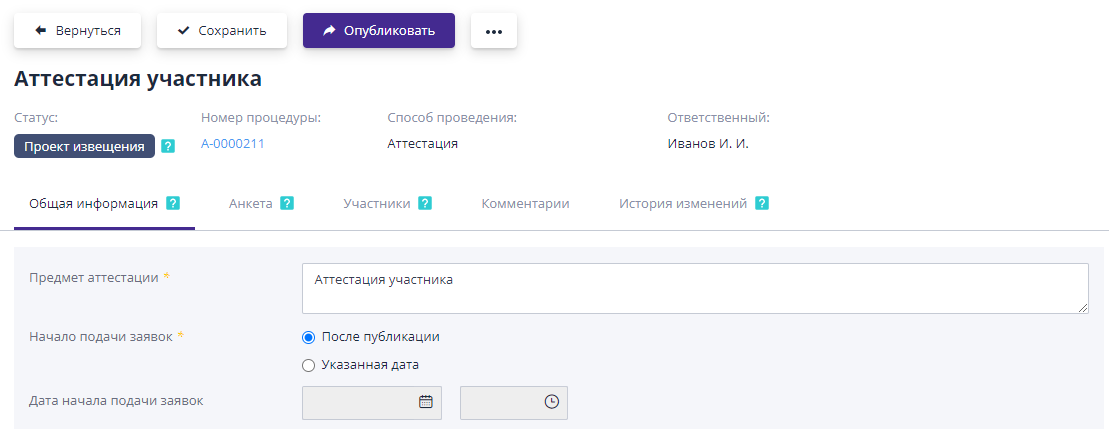
After which a draft certification notice will be created:
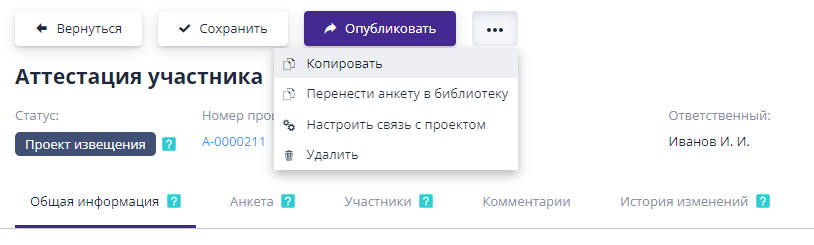
To create an attestation using copying you must select copy the procedure in the “My Certifications” journal and go to its page viewing.In the top menu, select additional options (button with three dots) and click on the “Copy” button:
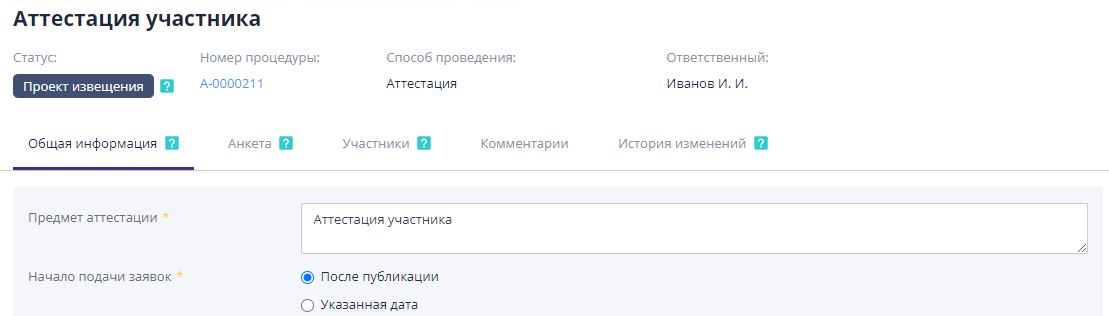
A duplicate of the original certification will be created in the status “Draft Notification” (all data from the original procedure will be copied):
Setting up attestation
Before you publish the certification, you must complete it setup and fill in all the required information.Certification is divided into several sections.Let's take a closer look at each of them.
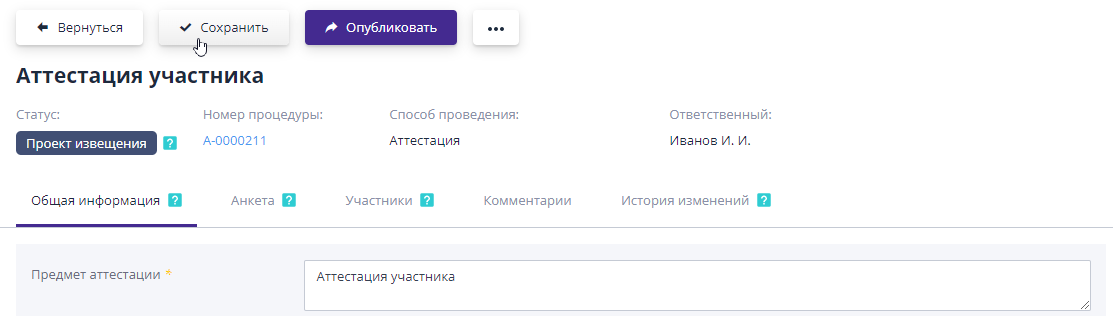
It's always better to save your changes before switching between tabs. changes using the Save button on the Quick Access Toolbar above:
Filling out the “General Information” tab
The “General Information” tab contains: general information, settings questionnaires, documents, contact persons and tender commission.
“General information” block
Each certification contains a block of general information.Editing is available in the certification status “Draft Notice” until its publication.All changes are applied by clicking the "Save" button on the panel quick access certification.
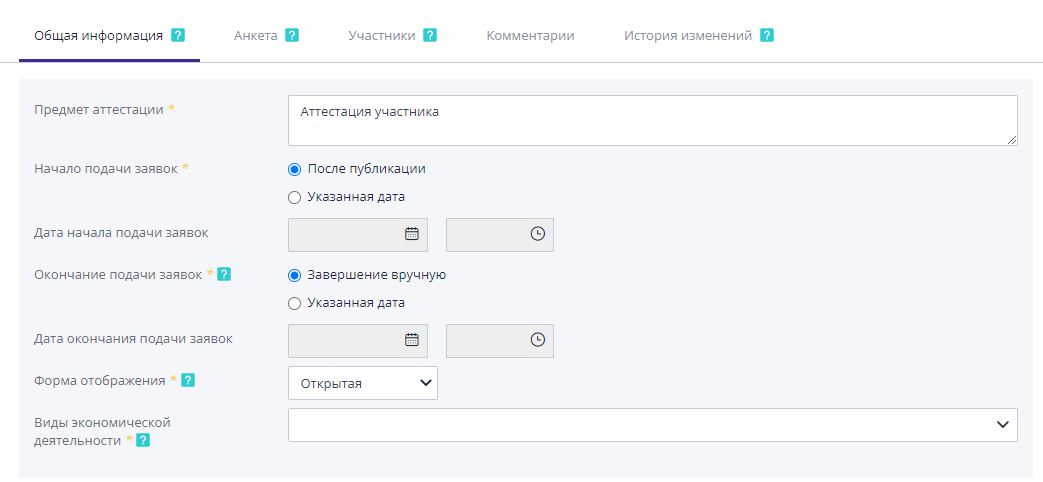
The general information contains the following data:
-
Subject of certification - a list of works or goods for which certification of partner-subcontractors is carried out;
-
Start of submission of applications - a specific date and time can be indicated the start of accepting applications, or you can set the start of accepting applications immediately after certification publications;
-
Start date for filing applications - after the specified date Acceptance of applications for certification will begin.You can set the date if previous setting in the value “Specified date”;
-
Application deadline - a specific date may be indicated and start time for accepting applications, or you can set the end manually (the organizer himself chooses when to stop accepting applications in procedure);
-
The closing date for applications is after the specified date The acceptance of applications for certification will end.You can set the date if previous setting in the value “Specified date”;
-
Display form - sets the procedure visibility for users in magazine "Certifications":
-
Open - trading procedures will be published in the magazine bidding with public access to viewing information about the bidding;
-
Closed - trading procedures are available for viewing only for some participants in the “Trading” section of their personal account procedures".
-
Types of economic activity - the type of economic activity is indicated activities for which certification takes place.
Block “Questionnaire settings - Certification”
This block contains settings for calculating the final grade for submitted application for certification and is displayed if the system is connected ratings functionality:

-
Evaluation influence coefficient, % - this percentage of employee evaluation will compile the final rating based on the counterparty’s application.
-
Algorithm for calculating the rating - can be “By sum of points” (sum what the employee indicated during the assessment/maximum amount possible score) or “By average of grades” (average arithmetic).
Block “Documents”
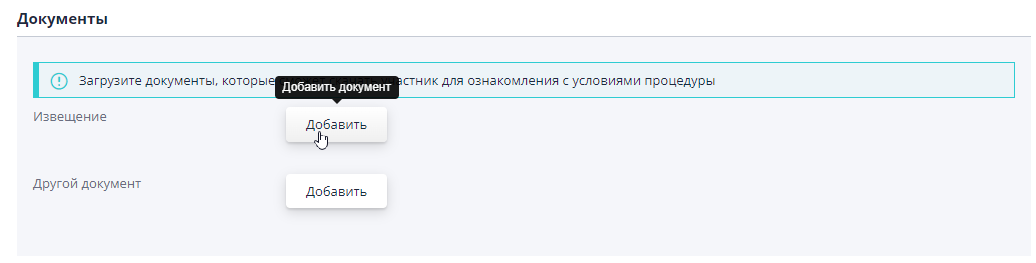
The participant can attach documents to the certification that can be downloaded participant for review.Uploading a document file to the system osuClick on the “Add” button next to the document name:
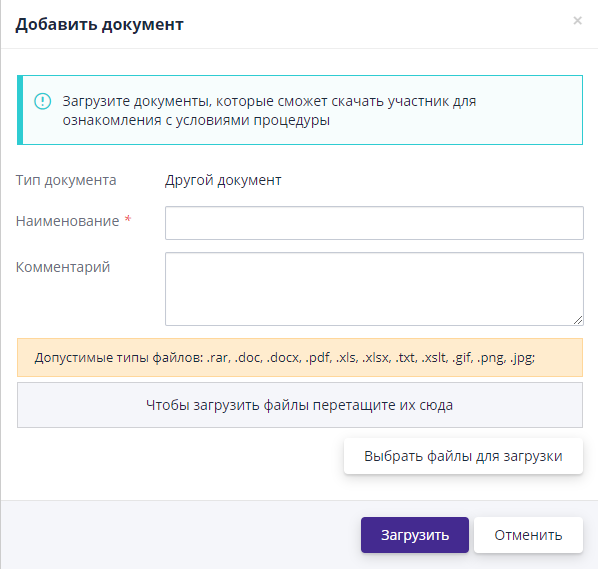
In the window that opens, you must select files to upload, specify name and optionally specify a description, and then click the button "Download":
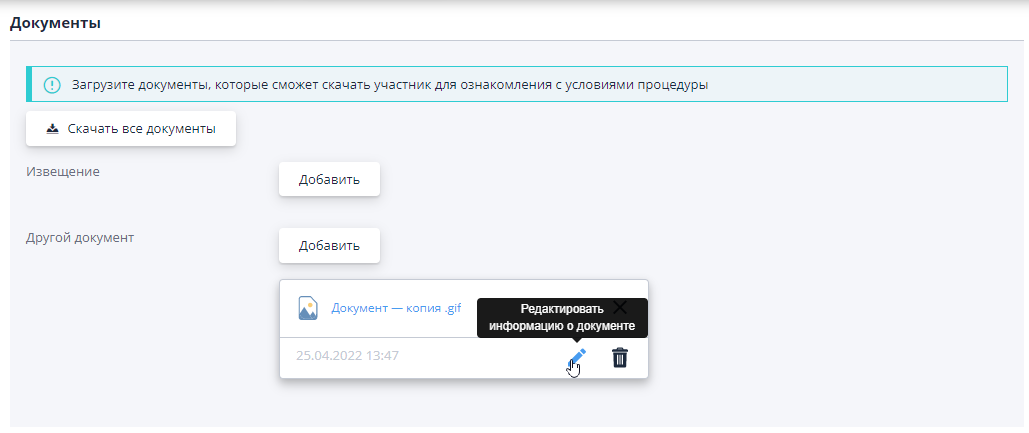
Editing the description and deleting a document is available through the buttons located to the right of the downloaded document file:
Block “Contact persons”
When creating an attestation, you can specify contact persons - those employees companies from which participants can consult on any questions about the conditions for participation in certification.
To add one or more contacts to an attestation, their you must select “Contact person” from the list (arrow button on the right side of the field) or start entering the employee’s full name (system will offer suitable options for selection).The list is formed from employees who are assigned the “Contact Person” role in the organization. If there is no user suitable for assignment in the list, you must contact the system administrator with a request to add an employee role of contact person.

After the certification is published, participants will be provided with information about contact persons: first name, last name, contact phone number and email mail.
Block “Tender Commission”
When creating an attestation, you can specify a tender commission.She is needed for conducting an assessment of participants' applications, if the questionnaire contains questions being assessed.You can add a pre-created commission or create a new one.After the certification is published, the commission can be changed.
In order to add the created certification commission, you must click on the button "Select an existing commission." In the window that opens From the list of created commissions, select the required one and click on the button "Choose":
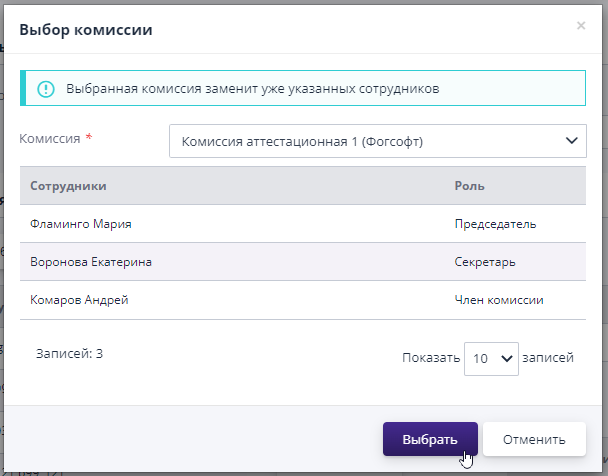
You can add employees by marking them with a checkmark in the “Employees” block with left side, then press the corresponding button “Enable”. Only those employees need to be added to the commission who have the role “Member of the competition committee”, otherwise the employee will not be able to fulfill his duties in assessing applications counterparties.The chairman can be a maximum of one employee, and secretary and commission member unlimited number of employees:
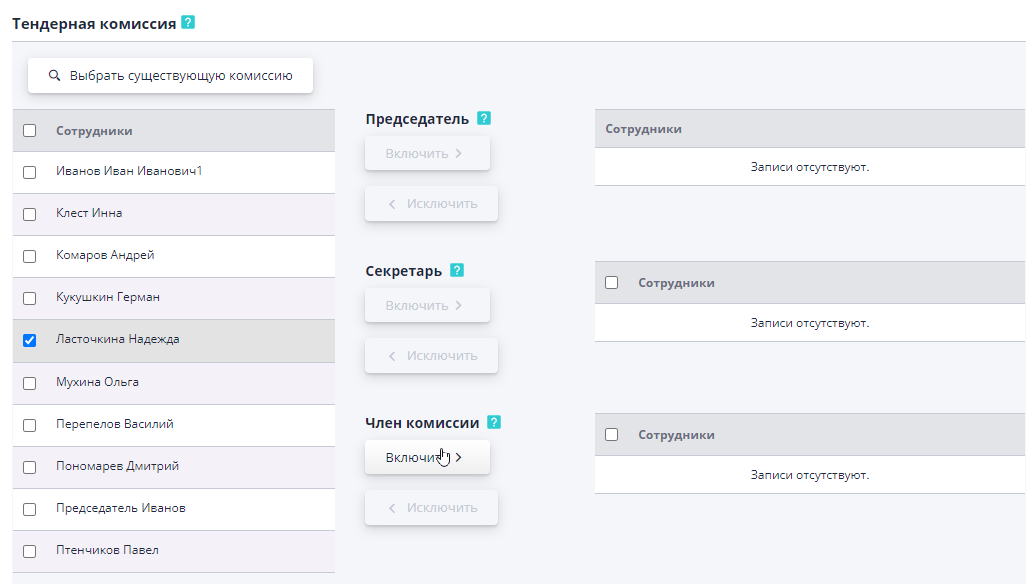
If an employee is added by mistake, then you need to indicate him in block “Employees” on the right side and click “Exclude”.
Creating a questionnaire in a procedure
More information about creating a questionnaire can be found in the section “Carrying out procedures”, item “Questionnaire in a procedure”.
Invitation to participate in certification
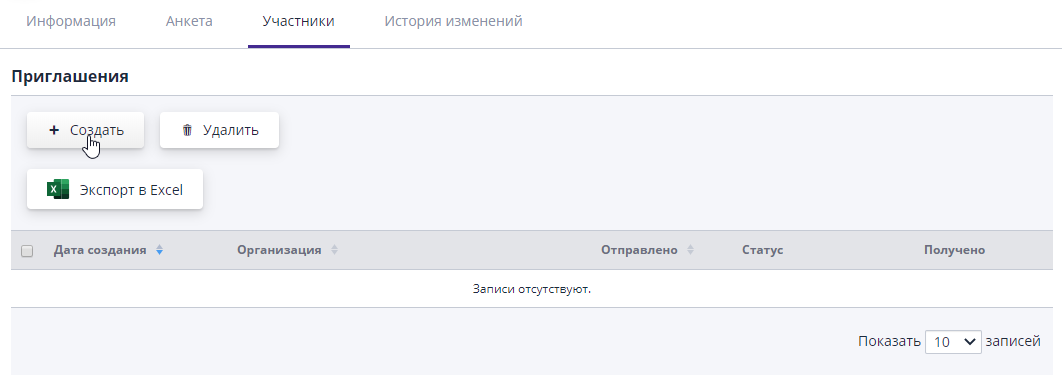
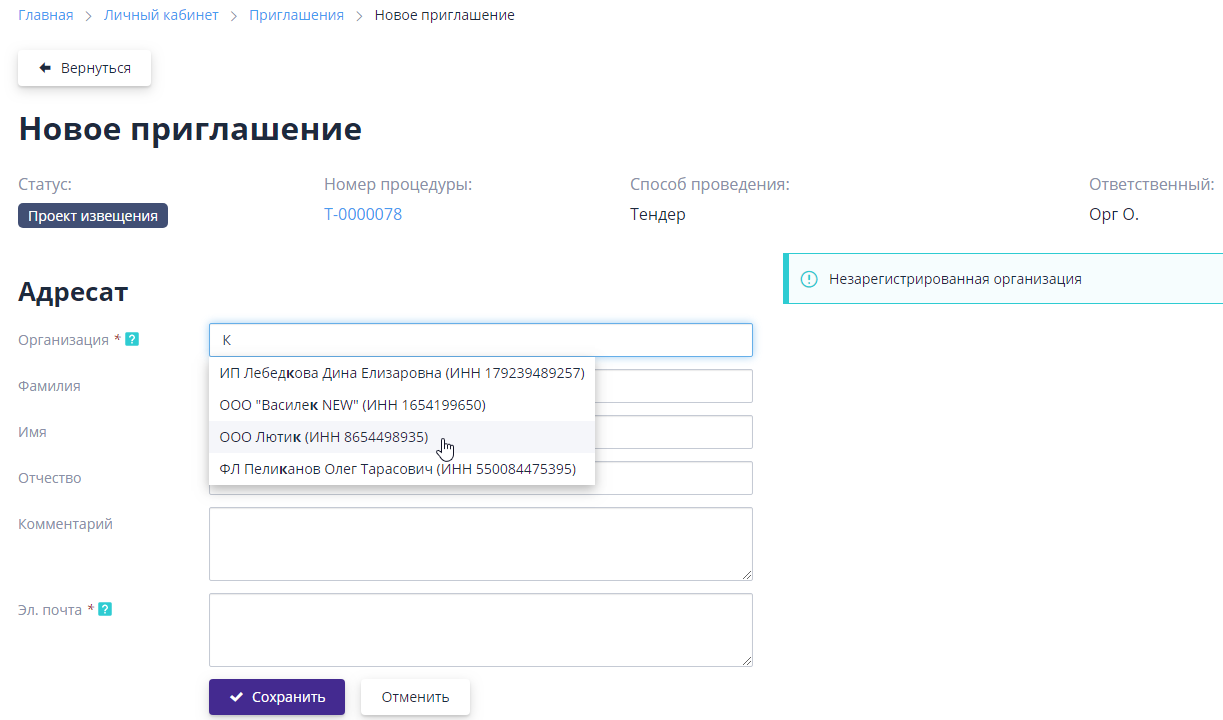
If the customer wishes to notify its contractors of a published certification, he can pre-create invitations to participate in certification for participants.Work with invitations is carried out on in the “Participants” tab of the edited certification.When you press the button "Create", a page will open to search for a company among registered in the system:
If no organization is found based on the entered data, you can Enter information to generate an invitation manually.In this case an invitation will be sent along with an offer to register in the system.
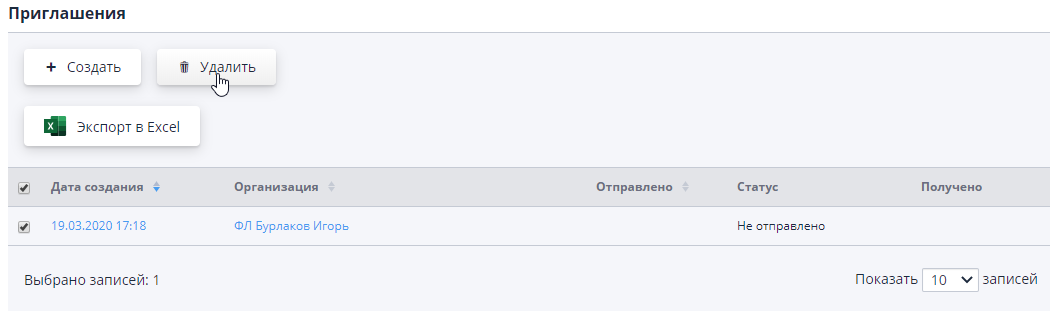
After saving the invitation, the “Participants” tab will display all created invitations in the procedure.
Erroneously created invitations can be deleted by checking the box in the list all invitations and clicking the “Delete” button:
Comment
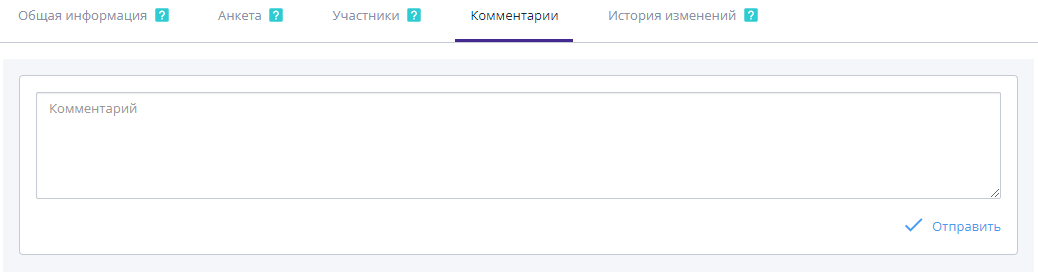
If the comment functionality is enabled in the system, then on the “Comment” tab you can view all previously left comments or add a new comment.
To add a comment, you must fill in the “Comment” field and click on the "Send" button:
To edit an entry, click on the “Edit” button, to delete - “Delete”.
History of changes
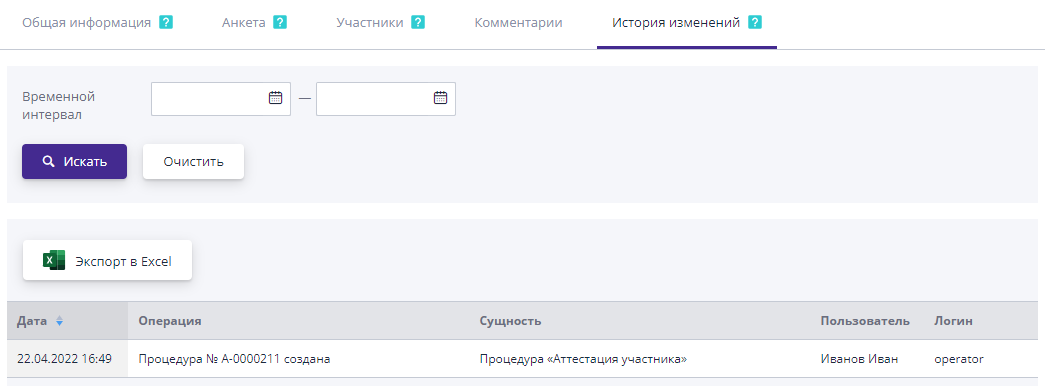
The customer can view the history of changes in certification on tab of the same name.The table displays dates sequentiallyand time changes in certification statuses according to the stages of its implementation, as well as users, due to whose actions certain changes occurred.At the stage editing a draft certification, only the date is displayed in the tab its creation.
Setting up communication with the project
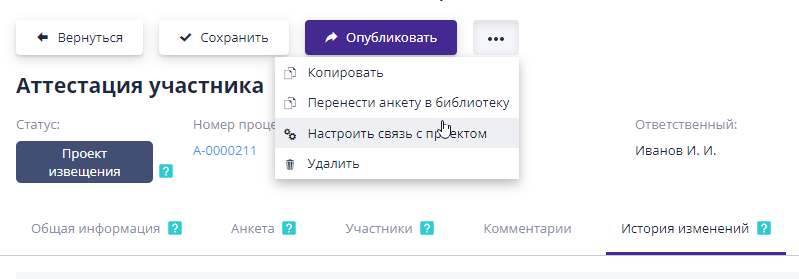
For systems with connected project functionality, there are objects called “Project”. The project combines certifications, trade procedures and contracts that relate to to this system object.In order to link certification to specific project or change an existing connection, you must click to the button "Set up a connection with the project":
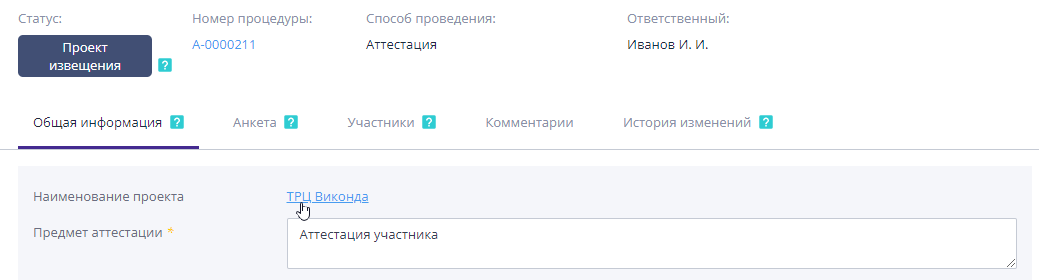
Then in the window that opens, select the desired project and click on the button "Confirm". A connection with the project will be created and this will be reflected in certification page:
Publishing and deleting attestations
In order for counterparties to submit applications to participate in certification, it must be published.After all the information certification form has been completed, invitations and forms have been created, you can go to her publications.To publish the certification you must click on the button Publish:
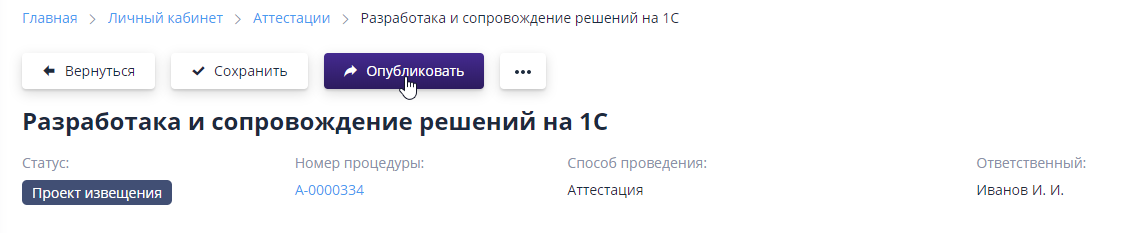
After publishing the certification, edit the basic information about it will not be possible, invitations will be sent automatically, and the status will change to “Published” or “Accepting applications” (if it was indicated during creation that Applications are accepted after publication).
If the certification project turns out to be unnecessary, you can delete it by clicking on corresponding button:
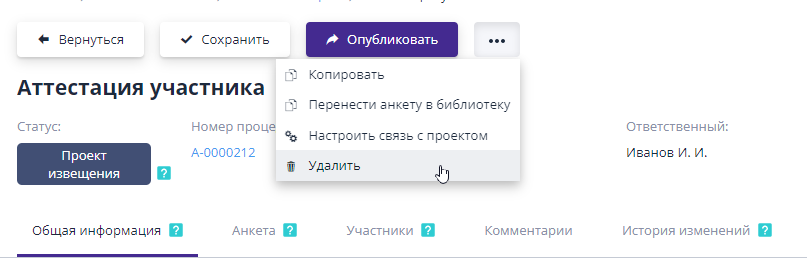
Cancellation of certification
If the assessment was published by mistake or for any reason This procedure is no longer needed, it can be canceled by pressing the button corresponding button:
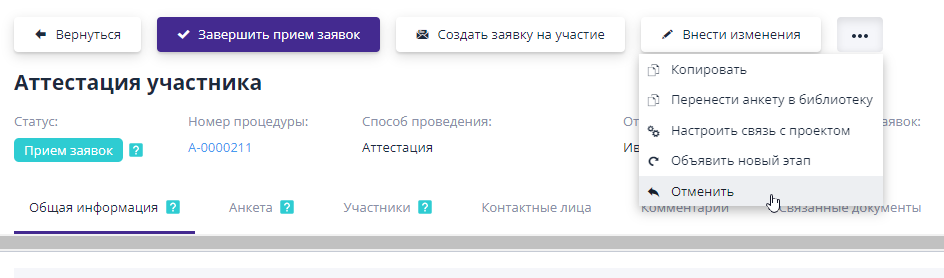
Next, you must indicate the reason for cancellation, which will be displayed on certification page, and click the “Confirm” button.
The certification status will change to “Canceled” and participants will not be able to submit applications, and it will not be possible to make a decision on applications already submitted.
Review of applications for participation
After the start of accepting applications for certification, participants can submit applications to participate.After submitting each application, the organizer will receive notification “Submitting an application for the procedure”, they can be considered immediately or after the deadline for accepting applications.
Submitted applications for participation can be found on the “Participants” tab in certification or in the section “Organization of trade procedures”, item “Application to participate in trading procedures."
View application
The content of the application for participation in certification depends on the site configuration. The application consists of a questionnaire, comments, related documents, request additional information and assessment.
The “Questionnaire” tab contains the questionnaire filled out by the participant.
If the system has comment functionality enabled, then on the “Comments” tab employees of the organizer’s company have the opportunity to leave your comments regarding the counterparty’s application. To do this, you need to enter your comment in the text field and click "Send":
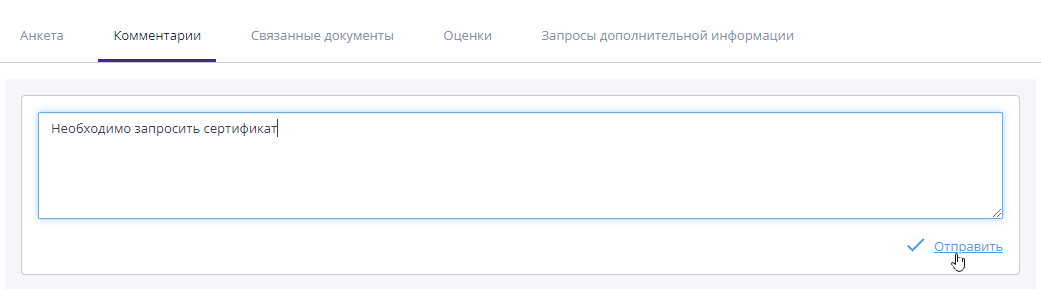
Once submitted, the comment becomes available for everyone to view.If the comment was added by mistake or there was an error in its text, then some time after publication it can be edited or deleted, by clicking on the appropriate button in the desired comment block.
The “Related Documents” tab contains all documents from the section “Document flow” related to this application.
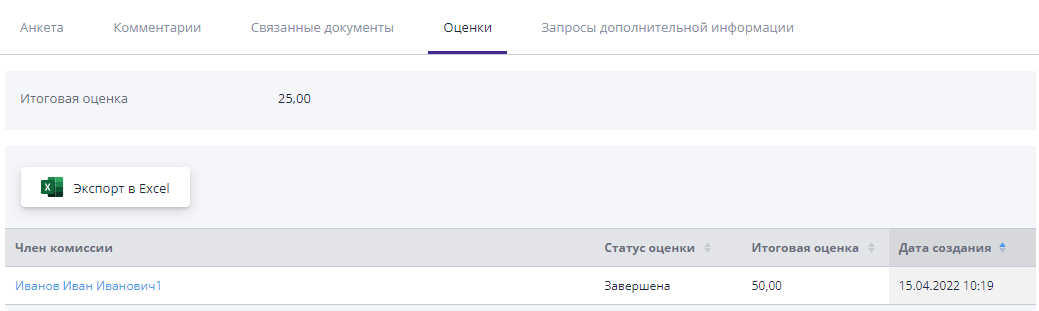
If the ratings functionality is connected to the system, then the Rating tab contains information on the evaluation of a specific member of the competition commission and the final assessment of the application, if the application There are questions for assessment:
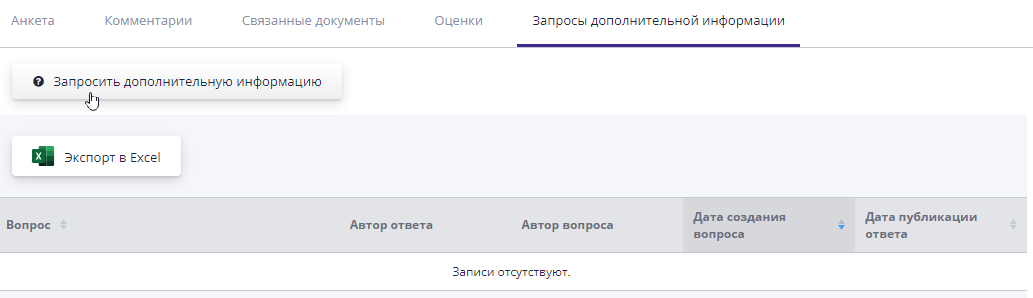
On the “Request additional information” tab there is an option ask a question about the application if the organizer needs clarification any information regarding the application.To do this you need to click on the button "Request more information":
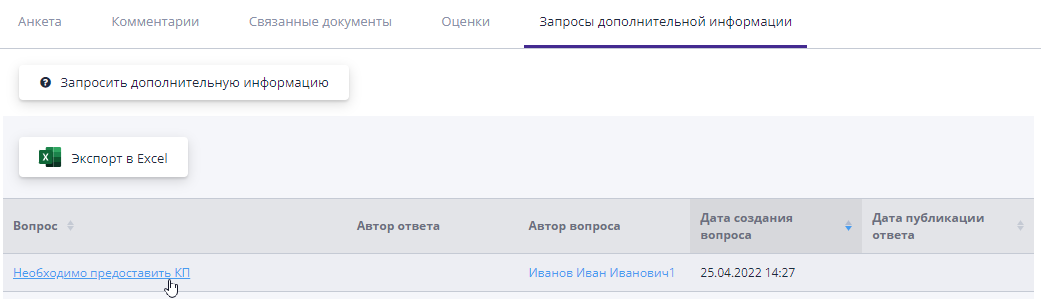
In the window that opens, you must indicate the question you are interested in and clickon button "Submit", after which the question will appear in the table.
After the participant answers the question, the customer will receive a notification “Response to a request for additional information on a participant’s application.” You can view the answer on the page of the question itself.
Application admission
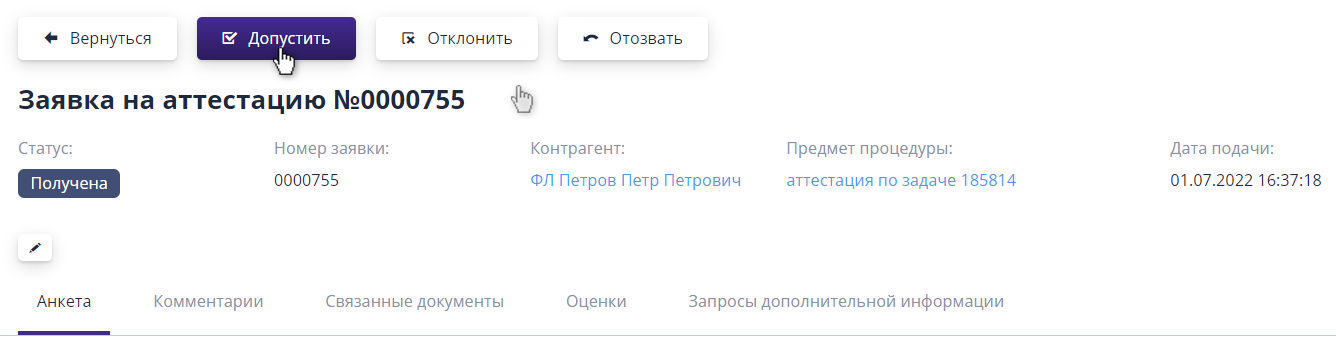
To admit an application on the page for viewing it, you must Click on the "Accept" button:
An admitted participant will receive certification for a given type of economic activities.If after a while the organization will it is necessary to change the application or obtain certification again, then until Upon completion of certification, the counterparty will be able to submit a new application.
Rejection of application
If the application or participant's answers do not meet the requirements, then the application can be rejected by clicking on the button "Reject":
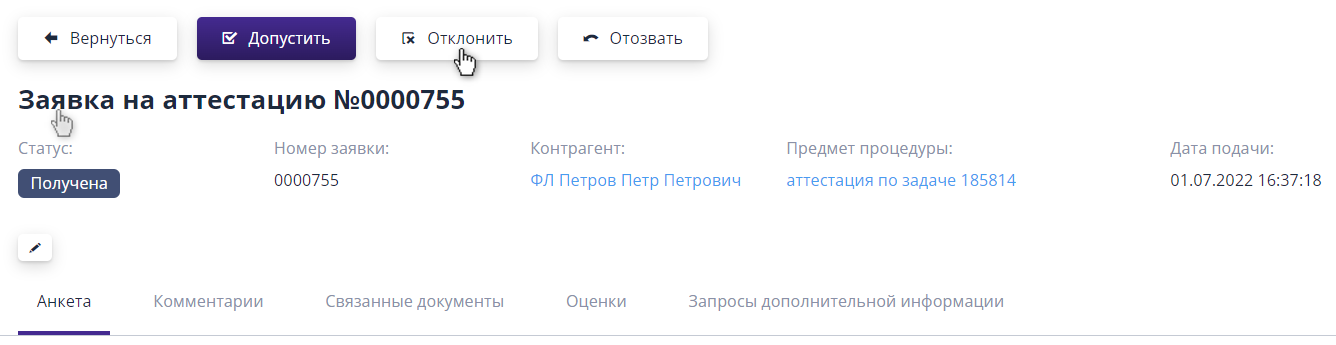
Next, you need to specify a comment that will appear on the page application and will be added to the notification for the organization, then click on “Confirm” button.
The participant will not receive certification for the specified type of economic activities, but will be able to submit a new application for participation in certification, if the application period has not yet ended.
Completion of certification
If, when creating the certification, the end of accepting applications was indicated manually, then to complete it you need to press the button “Finish accepting applications.” The certification status will change to “Completed” and some actions will no longer be available.
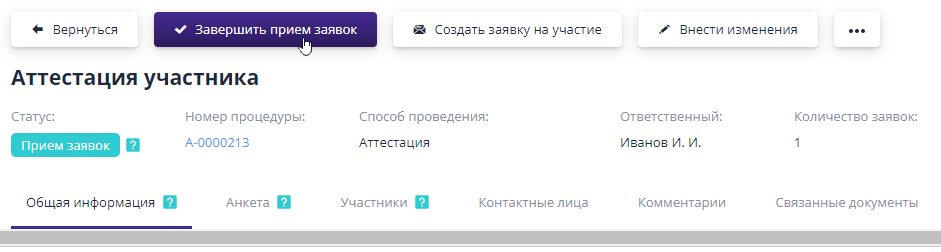
If there are unconsidered applications in the certification, then after completion certification, they will automatically switch to the “Rejected” status.
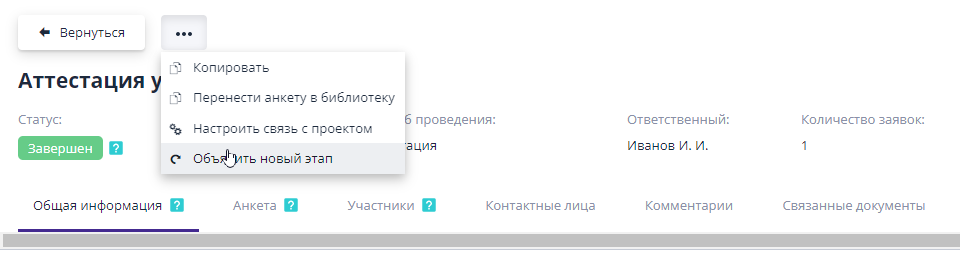
From the attestation page you can create an auction, RFQ and request proposals, and they will be related to each other.The new procedure will automatically added to the same project, will be created automatically invitations to certification participants.To do this you need to press the button “Announce a new stage”: