Preliminary setup of an organization for bidding
Before or while working with the ETP, the organizer can configure the following procedure parameters:
-
Evaluation criteria for the participant;
-
Requirements for participant documents;
-
Indication of contact persons for trading;
-
Setting the default trading progress;
-
Setting up certification and tender commissions;
-
Creation of an approval template;
-
Creating a questionnaire.
The set of parameters for configuration may differ depending on the site configuration.
Evaluation criteria
Each application for participation in trade procedures is usually assessed according to one or another criteria.These criteria are set in the auction when it is creation.
In the “Evaluation Criteria” section of your personal account, you can create and change a list of such criteria.
Available actions when working with criteria:
-
Creation of new criteria;
-
Editing existing ones;
-
Removing unused criteria;
-
Combining criteria into logical groups:
-
Creation of a group of criteria;
-
Setting criteria parameters.
Creating criteria
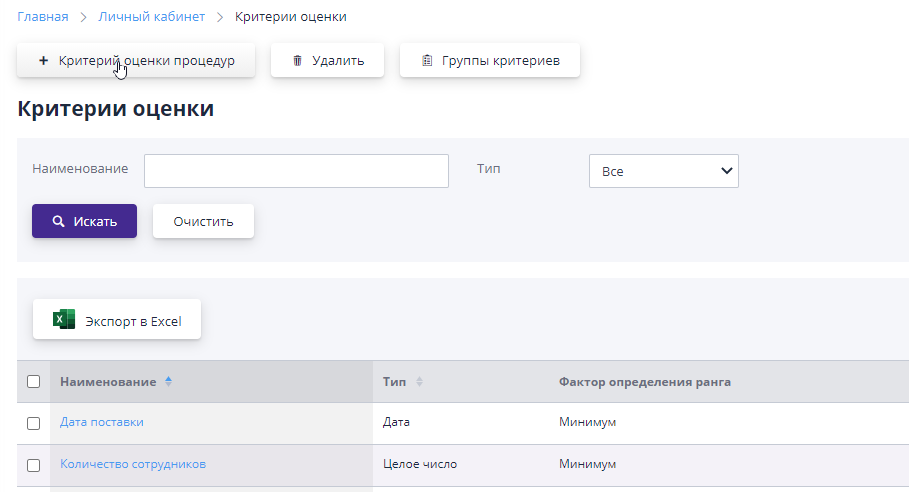
To work with the criteria directory, go to the personal section in the “Organization of Bidding” office, item “Evaluation Criteria”.Creating a new one criterion occurs by clicking on the button “Criteria for evaluating procedures”:
A dialog box will open asking you to enter a name. criterion, its type and rank determination factor:
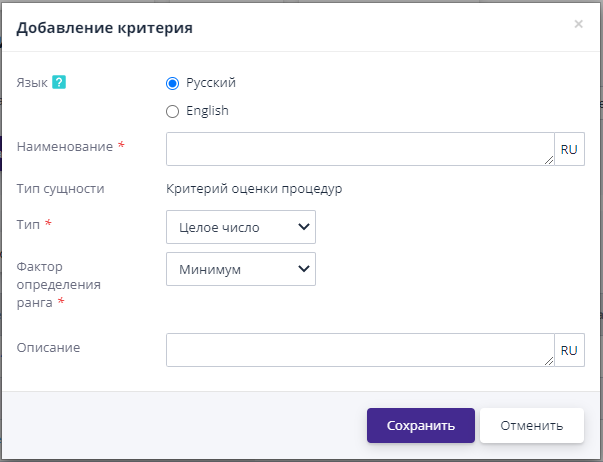
Criteria type determines what value the participant can enter in the field next to the criterion name.
-
Integer - the participant will be able to enter only numbers without fractional part (for example, the number of qualified specialists to perform a specific job).This criterion is not involved when determining the amount based on price criteria.
-
Number - any number, including with a fractional part (for example, delivery volume).This criterion is not involved in determining the amount for price criteria.
-
Date - select a date from the calendar (for example, delivery date goods, execution of a contract).
-
Price - any non-negative number with two digits after comma.This criterion is involved in determining the amount for a lot or items, if any (unit cost, delivery, materials, etc.).Applies to a position or lot in in general.
-
String - field filled with any characters.As a rule, used if a detailed description is required (for example, material and technical condition of the participant, staffing status, preference of delivery conditions).
-
Logical - a criterion that is uniquely determined and can have only two meanings “yes” or “no” (for example, having experience performance of similar work, the presence of analogues of the product, the absence in register of unscrupulous suppliers).
-
Amount - criterion that determines the final cost for positions and lots, based on the data entered into the criteria with the type “Price” (for example, amount per position, amount per lot).This criterion is calculated automatically, the participant cannot change it to stage of accepting applications.
-
Directory - the participant will be able to select a value from reference book.Directories existing in the system are available for editing To the site operator in the “System Management” section item “Classifiers” (for example, types of economic activities, region).This criterion is not involved in determining the amount based on price criteria.
-
Counterparty rating - automatically calculated criterion for based on assessments and surveys.This type of criterion is available if the system has ratings functionality enabled.
Rank Determination Factor - specifies how to rank the obtained criterion value."Minimum" means that the less specified value of the indicator, the higher the criterion will be rated."Mmaximum" accordingly, on the contrary - the higher the value, the higher the score will be criterion.
Any created criterion after saving is added to the list of all criteria.When creating a procedure or editing a draft notice, criteria from the directory will be available for adding to the auction, lot, position.
Editing and deleting criteria
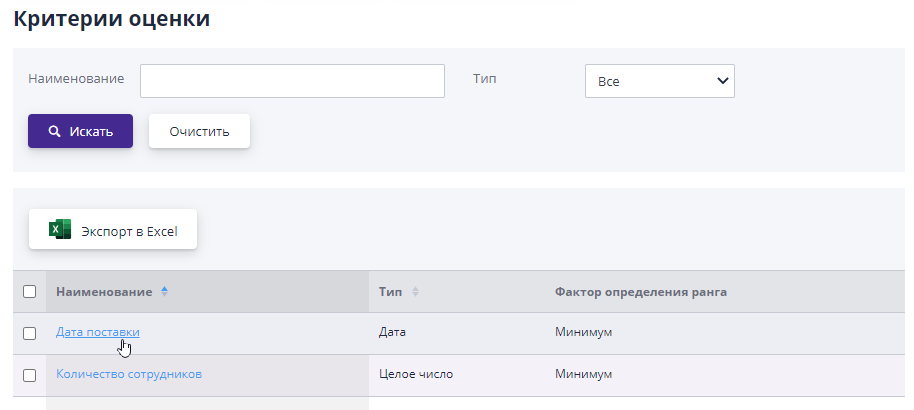
Editing the criterion is available from the “Evaluation Criteria” page.Transition editing is carried out by clicking the link in its title.
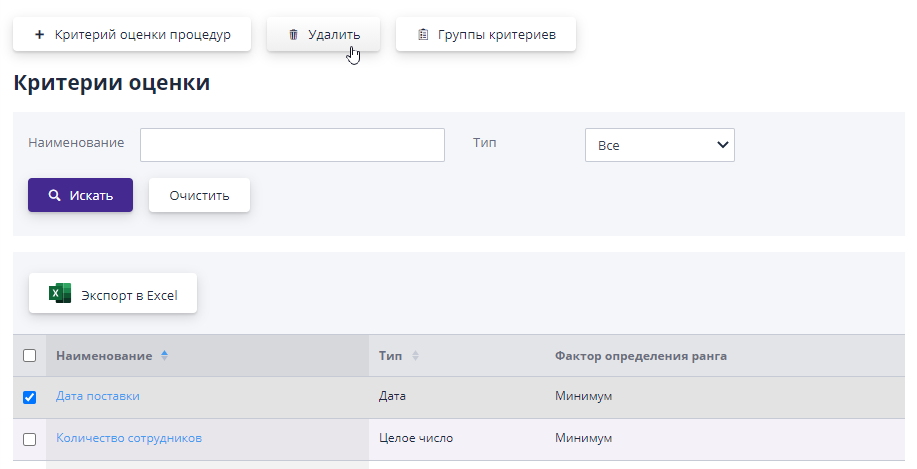
If any of the criteria is not used, it can be deleted: check check the list of criteria, then click the “Delete” button.In case if the criterion selected for deletion is already used in some trade, it cannot be deleted.The system will issue a warning about this.
Grouping criteria into logical groups
Criteria for reuse in different procedures can be unite into a group.To switch to working with groups on the page “Evaluation criteria”, click the “Groups of criteria” button.On The page that opens will display a list of created groups and a button for editing.
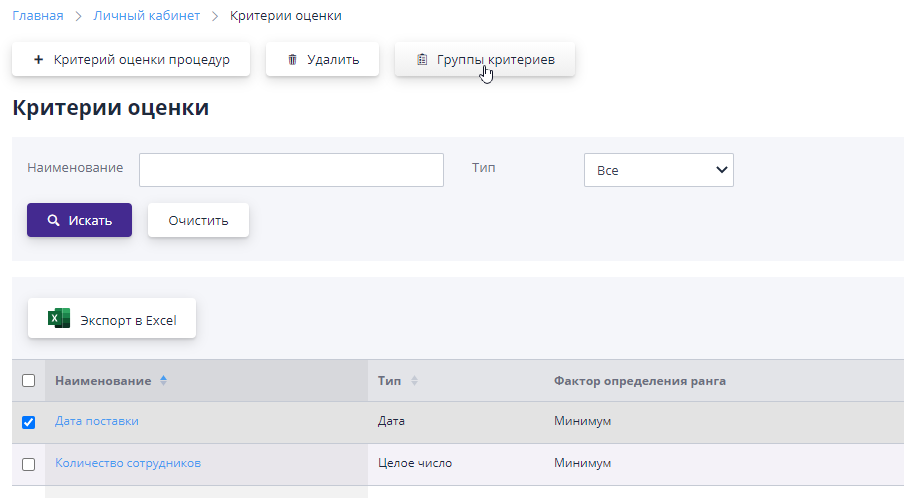
Adding a criteria group
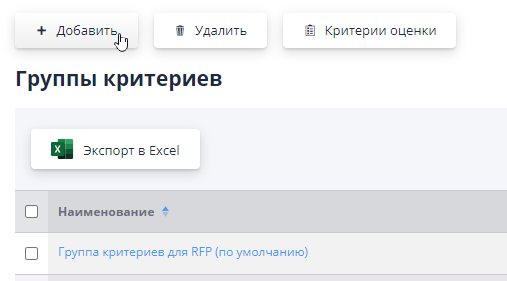
To create a new group of criteria, click the button "Add".
The new group editing page will open: indicate the name groups, and criteria are added using the “Select criteria” button (selection by one) or "Select criteria group" (a group is added immediately criteria, which has already been created).By clicking on each of these buttons A dialog box will open listing all available values.Selected the values will be added to the list of the created group.
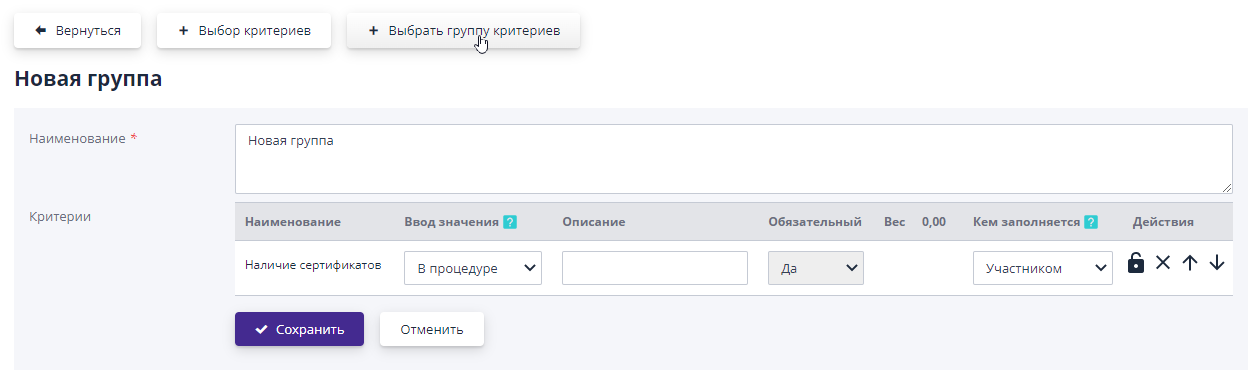
For each criterion the following parameters are indicated:
-
Entering values: in trade, in lot, in position.Only one is indicated of these values, which shows for which object is available criterion when creating a trade.
-
Description - indicates a description of the use for the criterion.
-
Mandatory - determines whether the criterion must be filled out a participant as part of an application for participation;
-
Filled out by - available options by Participant or Organizer. If the criteria are filled out by the Participant, the criteria are shown in application for participation at the stage of Acceptance of applications for trading, by the Organizer -- criteria are shown at the application review stage (admission/rejection of application).Editing a criterion value available for the corresponding role.View a list of criteria, filled out by the organizer, is not available to participants.
Also, next to each criterion, order editing buttons are available in list and removal from the list (up arrow, down arrow, cross).
After finishing working on the group, you must click the button "Save".
Groups of criteria will be available for adding on the page of the auction, lot, positions.
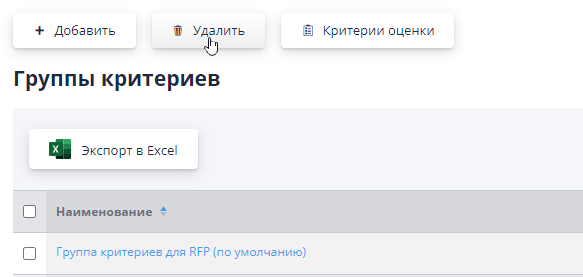
You can delete a criteria group that is not used: select the group and click the “Delete” button.
Document requirements
At the stage of editing tenders, you can add a requirement to documents, which the participant will be required to attach to his application for participation.If to evaluate applications for different procedures, it is necessary to use a standard a package of documents, it can be pre-created in the directory documents and use when creating a tender.
Available actions when working with the document directory:
-
Creation of new requirements for documents;
-
Editing existing requirements;
-
Removing requirements;
-
Combining document requirements into groups.
To work with the document requirements directory, go to section of your personal account “Organization of trading procedures” item "Requirements for documents."
Creating document requirements
Work with document requirements is carried out in the “Requirements” section to documents" of your personal account.Creating a new document type occurs by clicking on the “Add” button:

You only need to enter the name of the document type and save it:
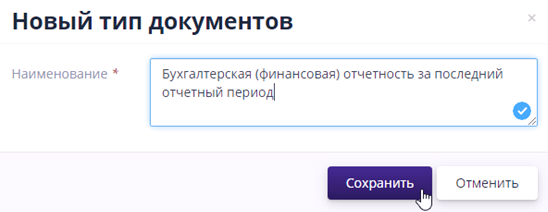
Editing and deleting document requirements
You can edit the name of a document type by clicking on the link in its name.
If any of the document types is not used, you can delete it, by checking the box in the list of document types and clicking on the button "Delete".
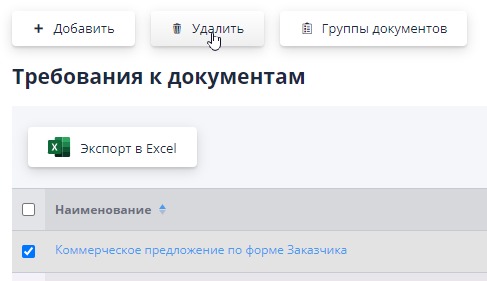
Combining documents into a group
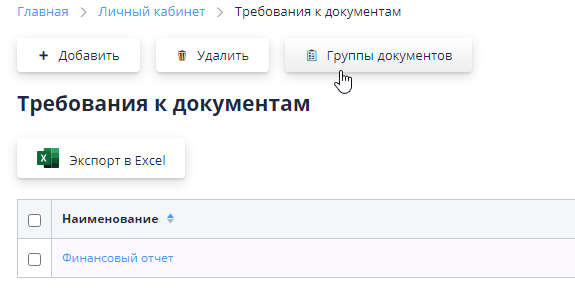
To create a standard package of documents, you can combine documents into groups of documents.When creating procedures, you can add all group without selecting individual documents from the list.To go to When working with groups, on the “Document Requirements” page, click button "Document groups".The page that opens will display list of created groups.
To create a new group of documents, click the button "Add".
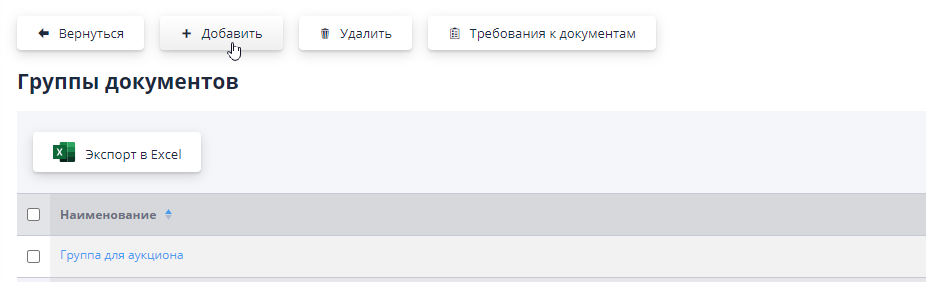
The new group editing page will open.It is necessary specify the name of the group and add documents to the list using the button "Choose".Clicking the button will open a dialog box with a list all available document types.Checked and selected items list will be added to the list of the created group.
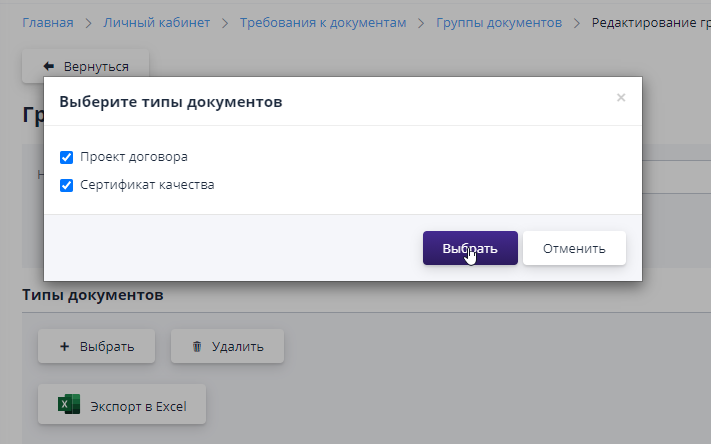
If necessary, you can check the added documents and click “Delete” button:
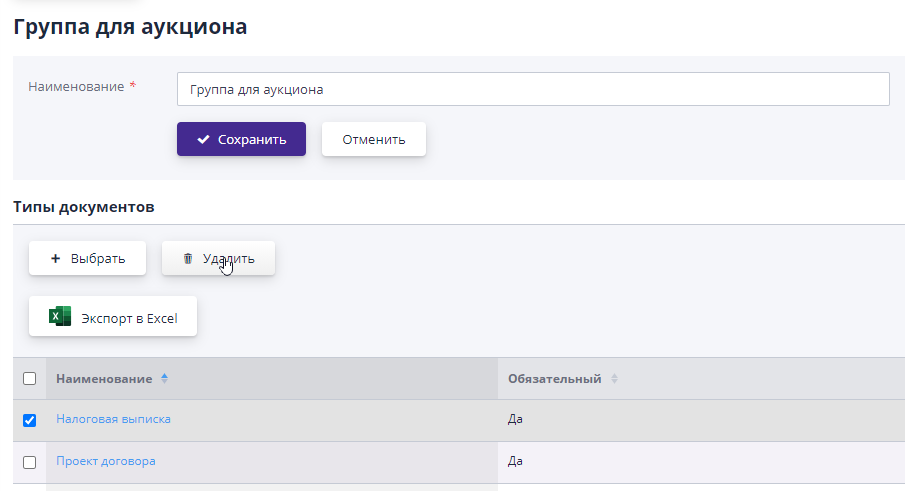
After finishing editing a group of documents, to save changes, click the "Save" button.
By default, group documents are required to be attached to as part of the application for participation.The mandatory setting can be changed by clicking to the link in the name of the document type and checking/unchecking the corresponding daw.You can also change the mandatory nature of the document type at the stage creating and editing an auction by clicking on the link in the title document added to the trading procedure.
You can edit the composition of a group of documents at any time by going to link in the title of the document group.
If some group of documents is not used, it can be delete by marking the group on the “Document Groups” page and clicking on “Delete” button:
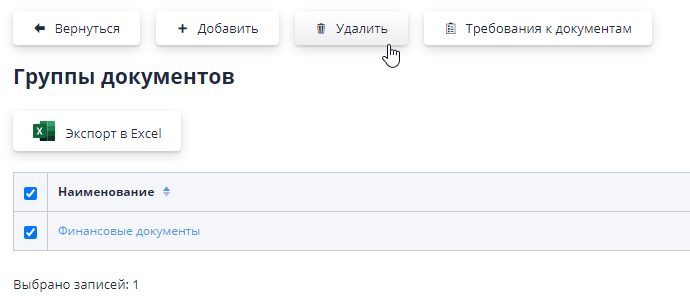
Groups of documents will be available for adding on the auction and lot pages in the section “Requirements for participant documents”.
Adding contact persons for trading
When creating a new trade, you can specify contact persons - technical company employees from whom participants can consult on any questions about the terms of participation in the auction.
A contact person is one of the roles of company employees.She might be assigned to the user either separately or in combination with other roles.
Only an administrator can assign and change roles in an organization. companies.
To add an account, a new employee must go to “My organization” page, in the “Employees of the organization” section.
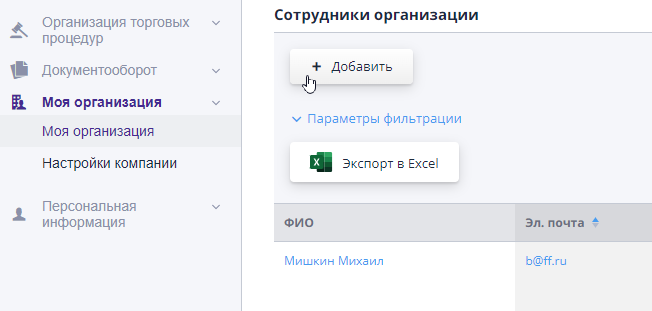
When you click on the “Add” button, a page for filling out will open information about the new user.If the contact person will communicate with participants only by phone and email, without it is planned to work inside the system, you don’t have to specify a login for it. To do this, you need to uncheck the "Can log in" checkbox.
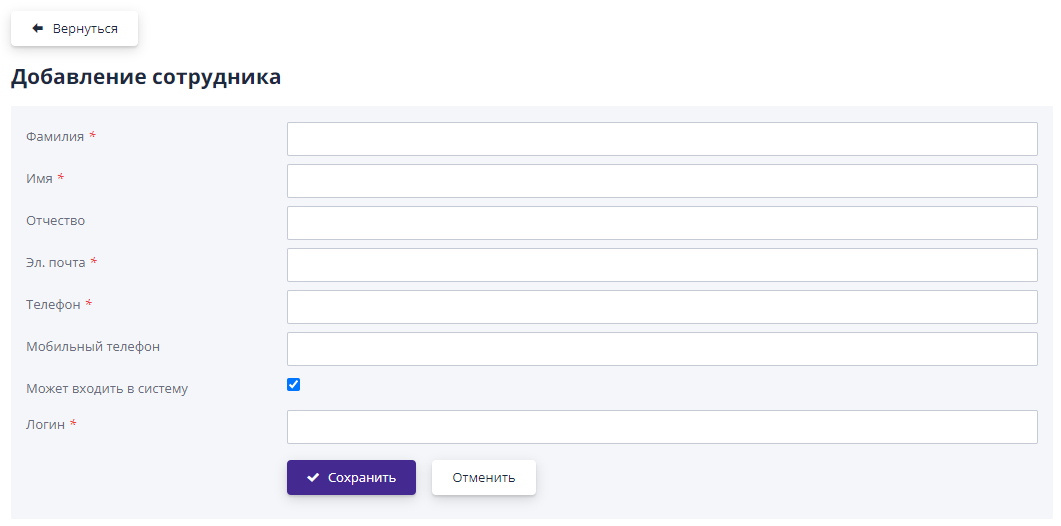
After filling out and saving the required information, the user will be created, and the system will prompt you to set roles for the employee.Should tick the “Contact person” role and save the changes:
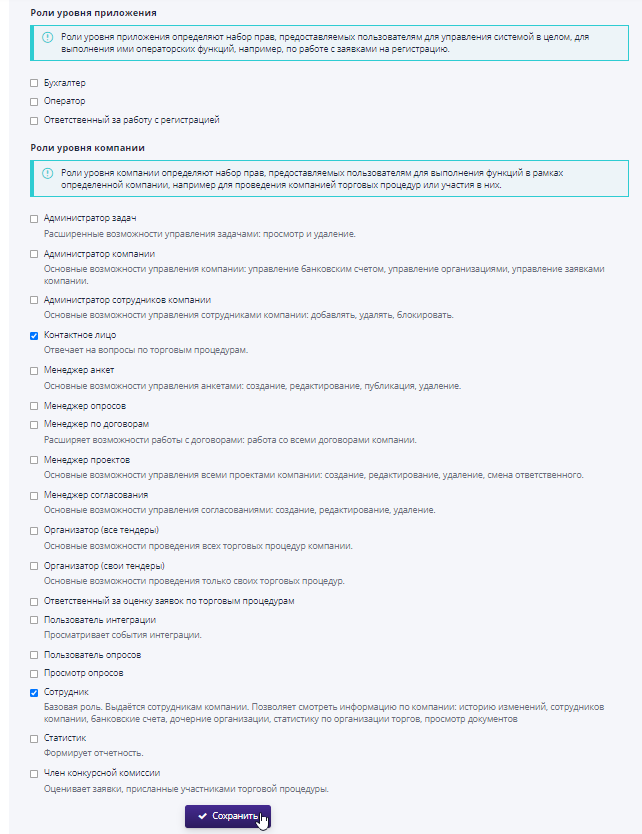
In the same way, you can assign and remove the role of a contact person from other employees.Such employees will be available for reference in as contact persons when creating a tender.
After the auction is published, the contact persons will be shown their first name, last name, contact phone number and email.