Submitting applications for participation
Submitting applications for participation in the procedures is the same for Certification, Auction, Request for Proposals, Request for Prices, and is divided into two parts: creating and editing an application and submitting it for consideration organizer.
Information on an unsubmitted application for participation is not available to the organizer. available.
Creating and submitting an application for participation
Submission of applications is possible for the procedure in the status “Accepting applications” and required to participate in the auction.To apply for participation you must go to the page of the auction or lot you are interested in and click the button “Create an application for participation”:
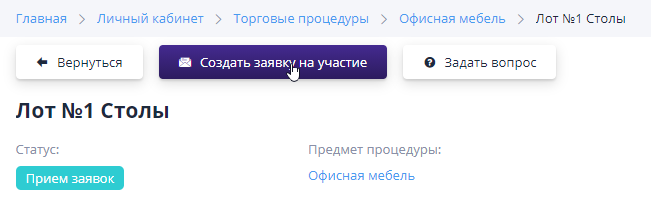
Each application consists of two parts that must be completed before submission: qualification requirements and commercial proposal.
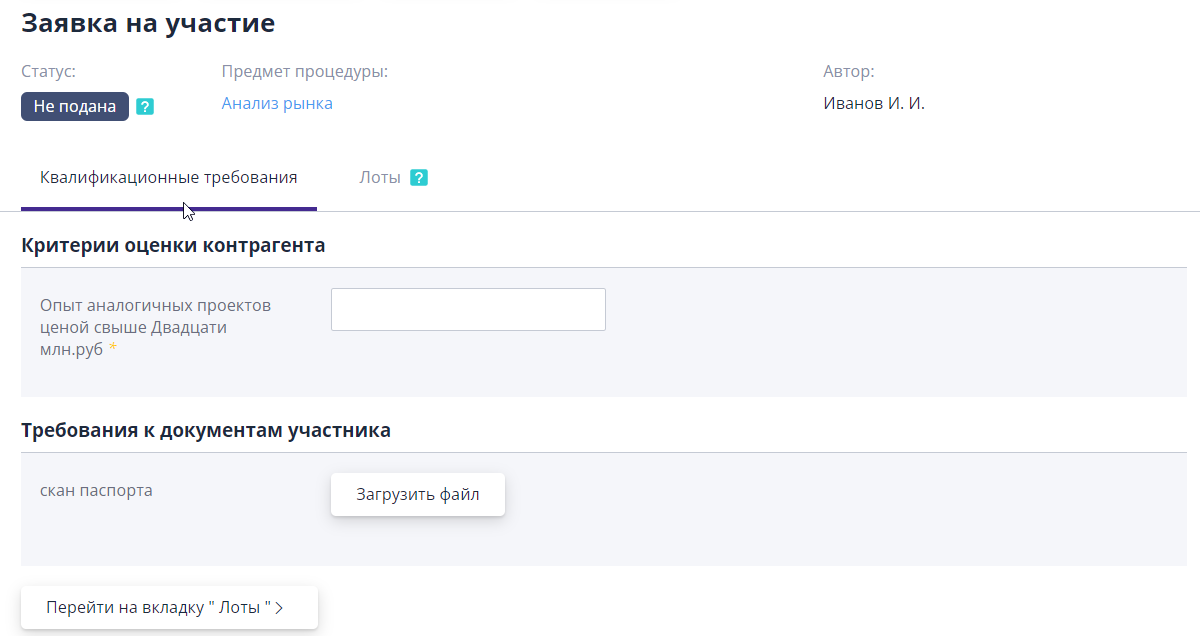
Qualification requirements - part of the application for participation in which it is necessary to fill out information according to the organizer’s requirements related to to assess the qualifications of the supplier.Mandatory criteria and documents will be marked with an asterisk “*”.Criteria and documents without such a sign is considered optional and is filled in at the discretion of bidder.The list of criteria and documents is customizable by the organizer individually for each auction:
Filling out information on lots
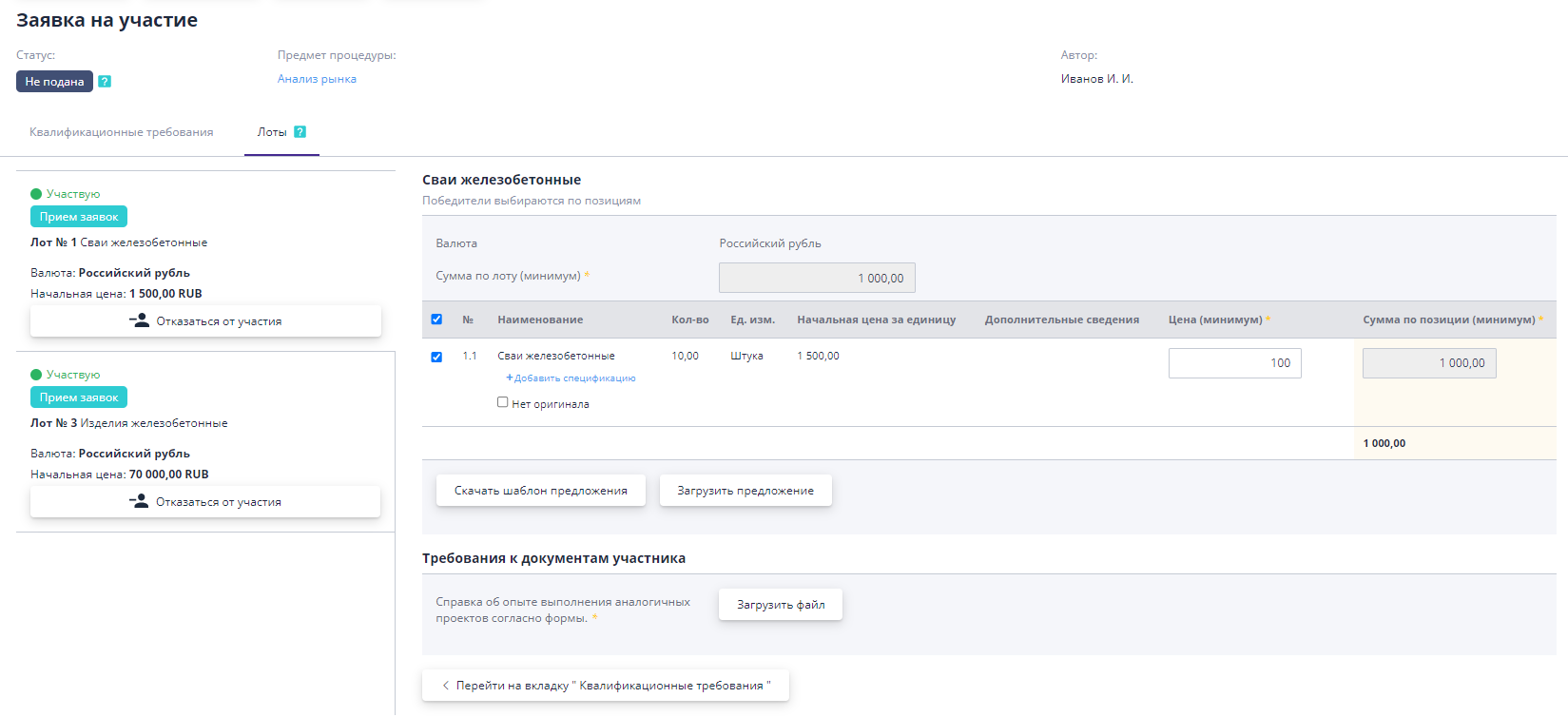
Lots - part of the application for participation, in which Participants indicate their offer for the lot of interest.Commercial part of the offer is submitted to the lot (the winner is selected by lot).Also in the lot, the organizer may offer to fill out the criteria for the subject procurement.Mandatory criteria and documents will be marked with a sign asterisks "*".Criteria and documents without such a sign are considered optional and to be completed at the discretion of the bidder.List criteria and documents are customized by the organizer individually for each lot:
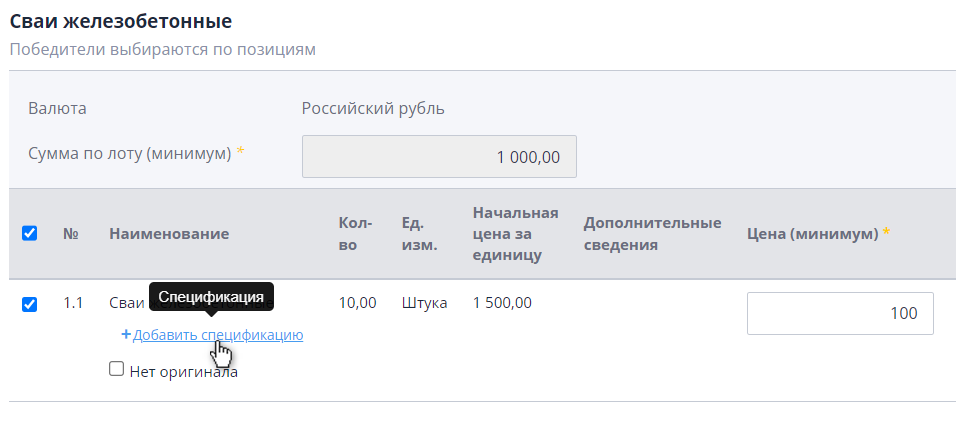
For some items, the organizer can indicate that he is ready to purchase analogues instead of the original.In this case, for such a position one should add your specification.To do this you need to follow the link "Add specification" below the title of the corresponding item:
In the window that opens, you must fill in the required fields and click "Save" button:
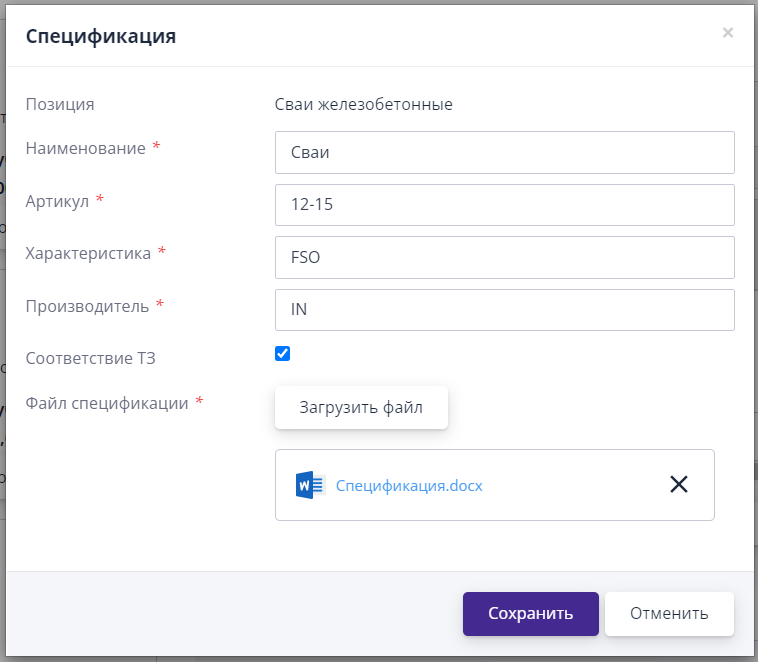
After saving, a new position will be added with the previously specified information. Now you can specify a commercial offer according to your specifications:
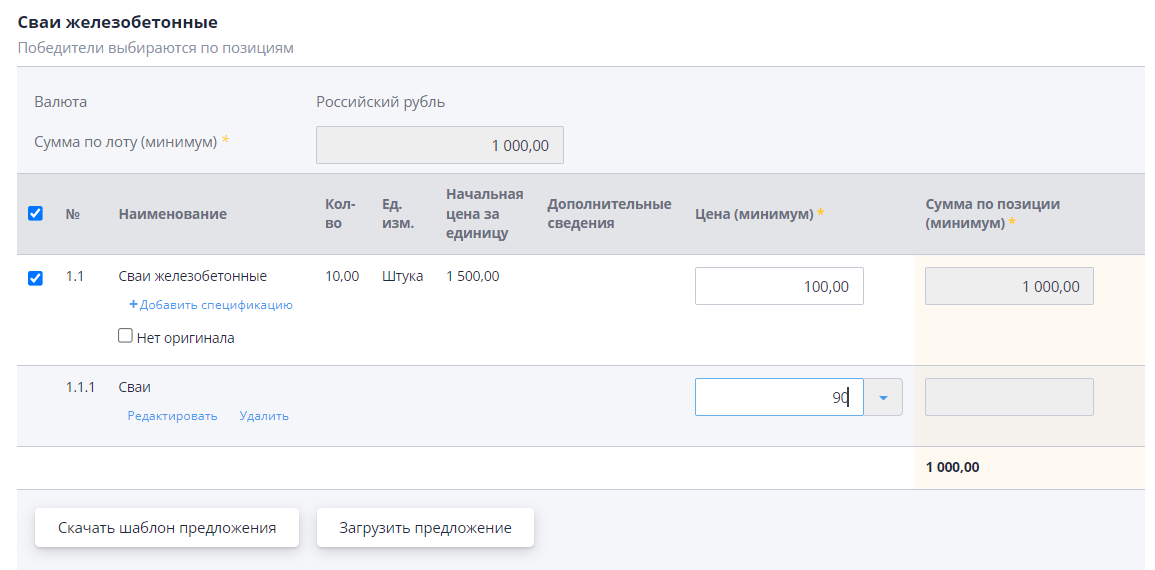
When filling out an application, you can use the price import mechanism proposals for positions and specifications, which is especially important when a large number of items per lot.To do this you need to download the template import on the application page for participation in the “Lots” section by clicking the “Download proposal template” button:

For successful import, it is necessary to maintain the integrity of the template table and data formats in it, so it is recommended to edit the file use Microsoft Excel.However, the template format cannot be change, and when saving it must be left as standard: “.xslx”.
When editing an import template, you must specify your price suggestions in fields highlighted in blue.Protected from table cell changes (all others) must be left unchanged changes:
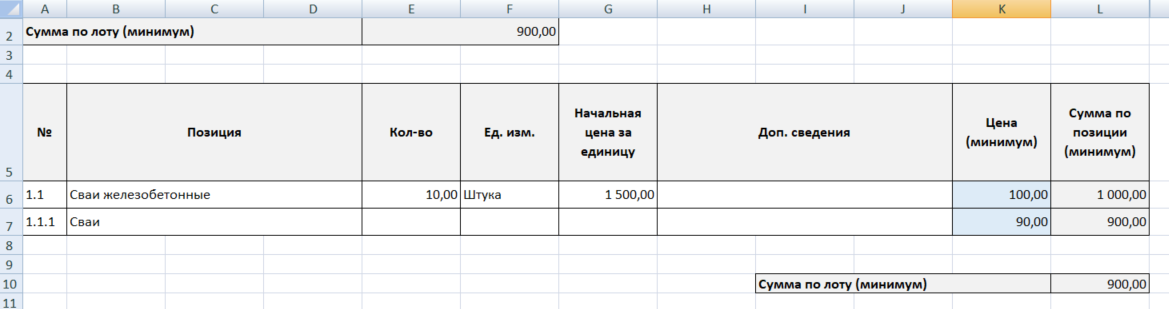
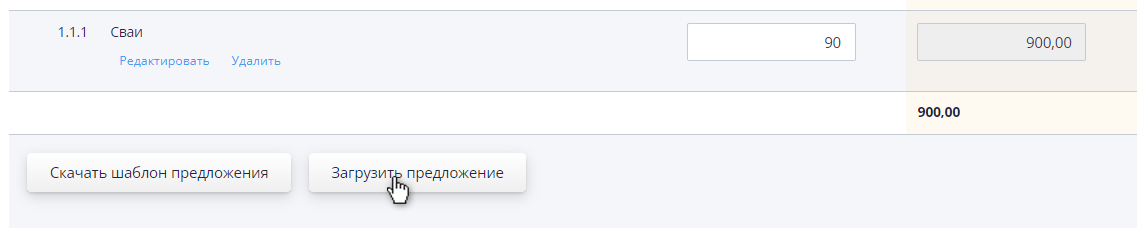
Upon completion of editing the template, all changes made are required save, after which the file can be loaded into the system.To download a file you must click on the “Download offer” button on application page for participation in the “Lots” section:
In the case of a multi-lot procedure, one application is submitted for the entire bargain.And already in the application itself you can select the lots you are interested in.For this purpose in in the “Commercial proposal” section of the draft application, you must click on the “Take part” button opposite the lots of interest:
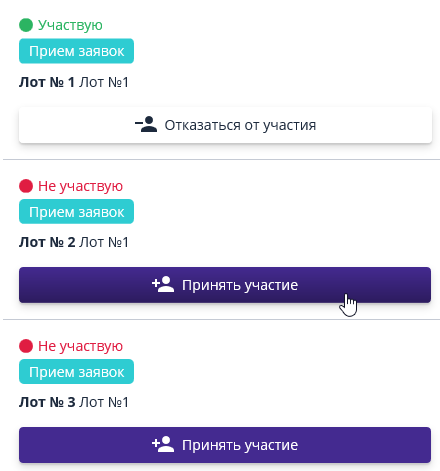
For each selected lot you will need to fill in the required fields with evaluation criteria and commercial proposal.
After the data on all the items of interest has been marked and filled out lots, you can applyku using the button of the same name:
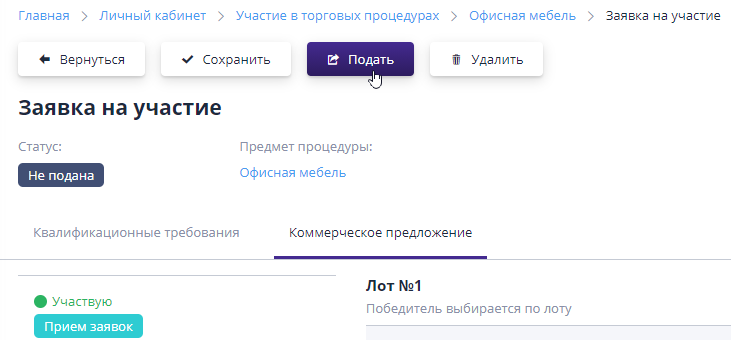
After submission, the application is considered registered in the system.Status application changes to “Submitted”:
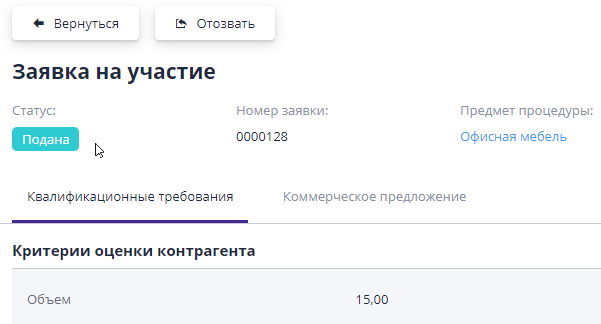
If the system has electronic signature functionality enabled, the application for participation will need to be signed.The process of signing an application is described in the section “Signing an application for participation” (the section is available if you have an electronic signature in the system).
The application is sent to the organizer for consideration.At the same time he can request additional information on it.In this case, the system notifies the participant that he needs to go to his application and add the information requested by the organizer to it.Results for consideration of the application and the decision to select the winner is made in procedure in the “Summary” status.
Reviewing and editing an application for participation
If necessary, changes can be made to the submitted application for participation. Editing an application is possible while the auction is in the “Acceptance” status applications.In other statuses, making changes to the application for participation impossible.
To make changes to the application, it must first be withdrawn.
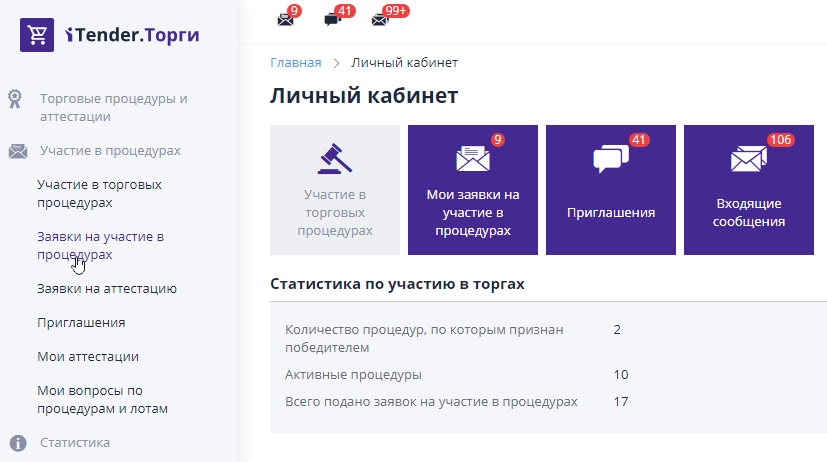
To withdraw an application, go to the application page from the bidding page, for which it was submitted, or find the application in the “Application for participation in procedures" in the left side menu:
On the application page, click the “Withdraw” button:
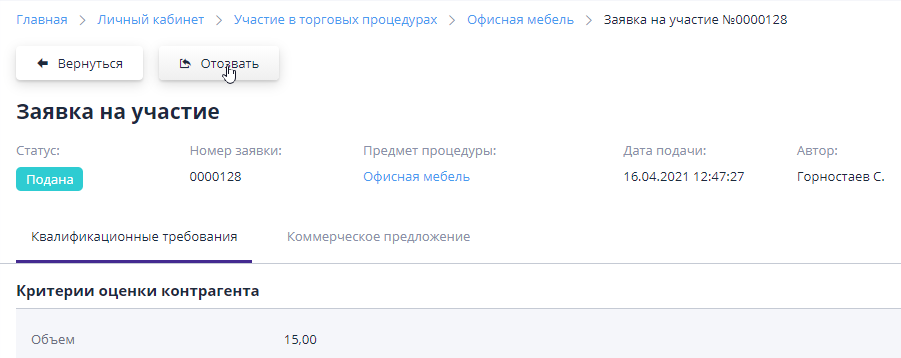
If the electronic signature functionality is enabled in the system, the revoked application for participation will need to be signed.The process of signing a revocation of an application is similar to the process of signing a submission of an application and is described in the “Participation in tenders” section, paragraph “Signing an application for participation”.
The application status will change to “Withdrawn”.
To make changes you now need to click on the button "Edit":
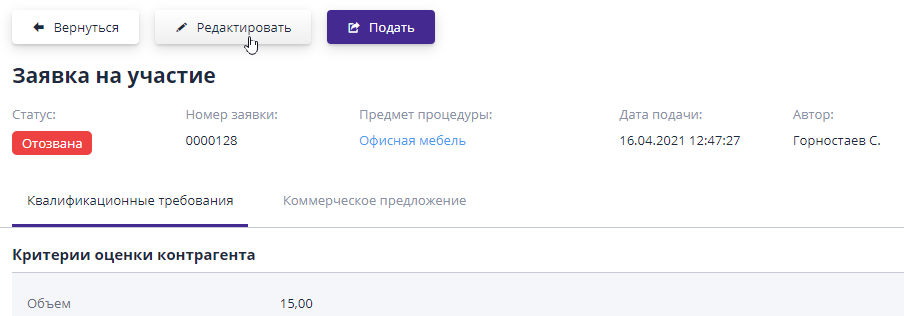
Further changes to the application for participation proceed in the same way. completing the draft application described in the section “Creating and Submitting applications for participation" of the current management.
To resend the application, the organizer should click the button "Submit":
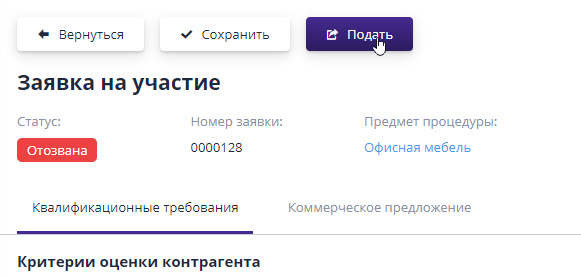
Deleting an application for participation
Deletion of an application for participation is possible before it is submitted for auction.If The application has already been submitted, it can only be withdrawn.Read more about how to do this is described in the section “Recalling and editing an application for participation" of current management.
To delete, click the button of the same name on the draft page applications:
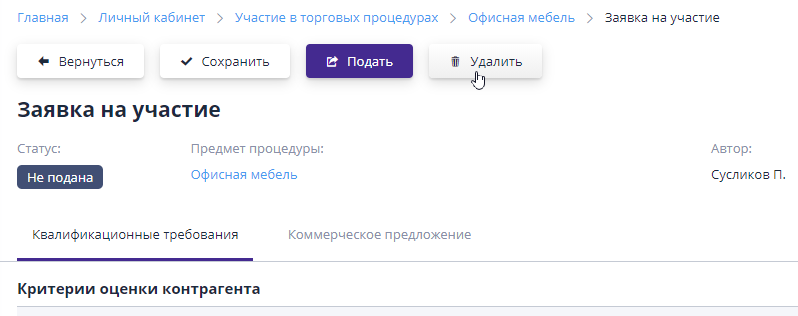
Working with additional information request
After submitting an application for participation, the organizer can view it and, if if necessary, request additional information regarding her.
Notification of a request from the organizer is sent to your personal bidder's email:
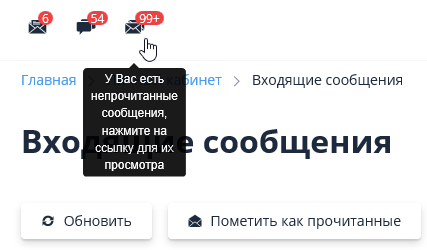
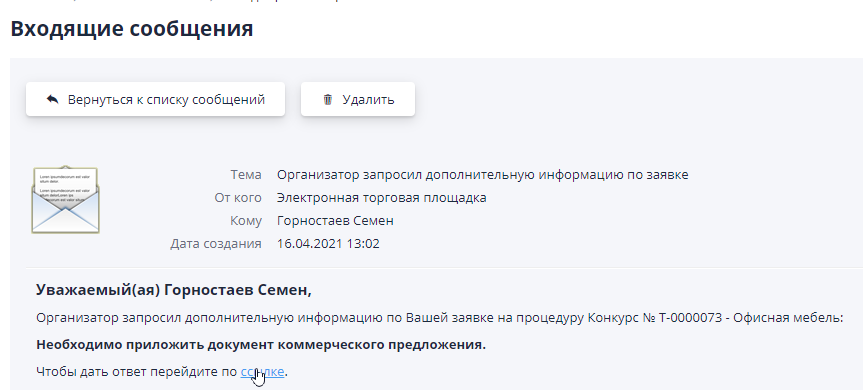
To quickly go to the response form at the organizer's request, you should follow the link from the letter:
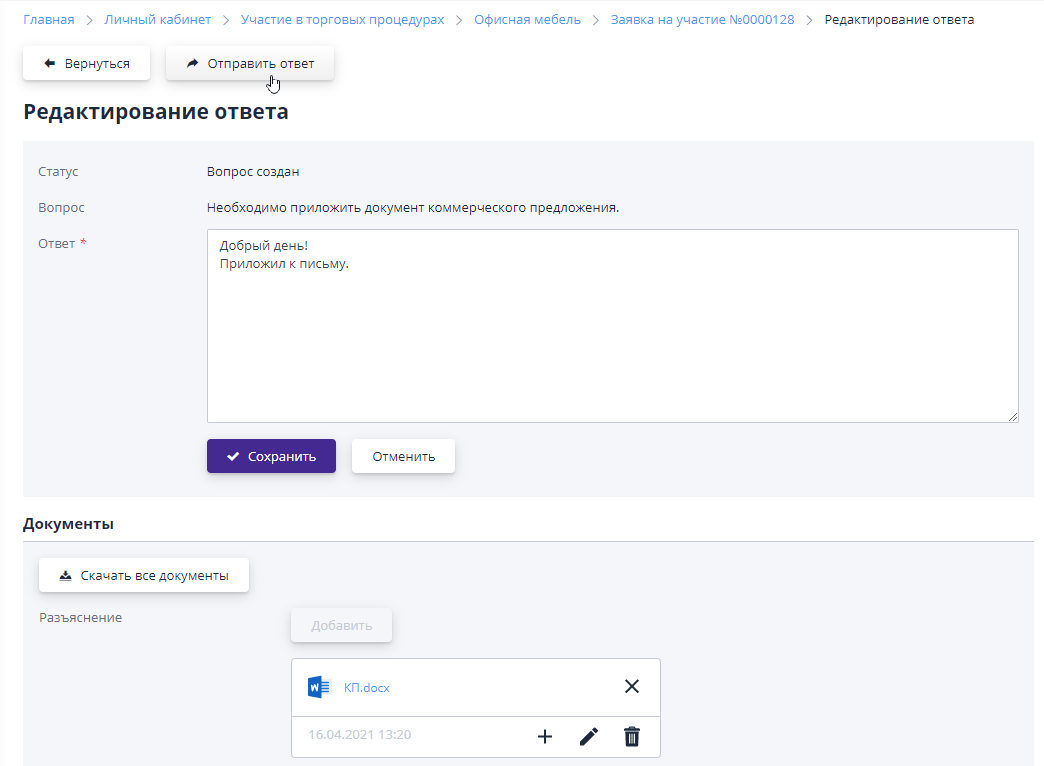
In the form that opens, you must read the organizer’s request and provide the requested information.In the "Response" field you should add your comment on the question asked, and attach it in the “Documents” block files for clarification or addition:
The history of requests and responses is available on the application page for participation in Section "Requests for additional information":
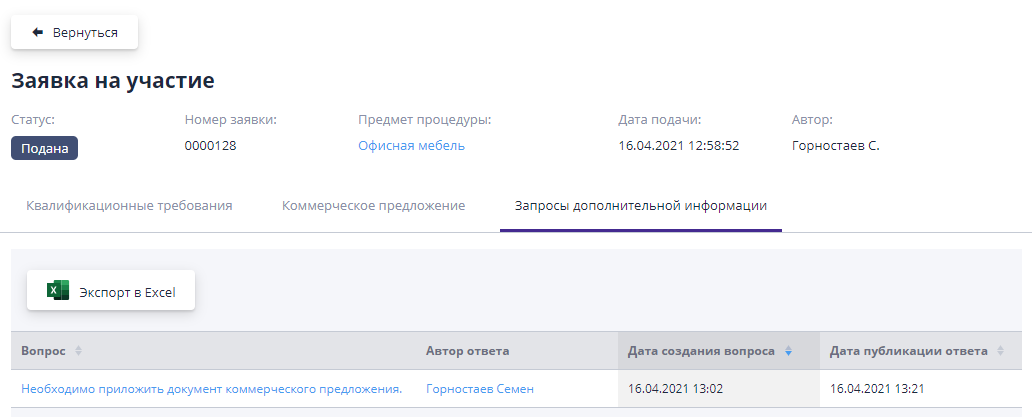
This section displays a complete list of information requests for the lot. To view the response to a request, you must follow the link in the title question.