Carrying out the stage of additional document request
Additional document request
If, when summing up the results of the auction, the organizer required participants a set of documents, then a procedure is carried out among the participants additional request for documents.During the additional request for documents to participants You are asked to provide the requested documents.
The additional document request stage is carried out in the form of a one-time application submission to participate in the interrogation, with the provision of the requested documents.
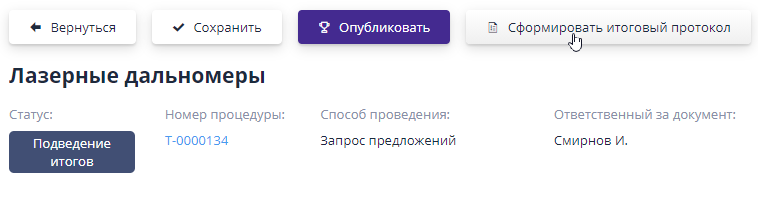
Additional inquiry is carried out throughout the entire procedure or at a separate stage.For him carrying out, you must go to the procedure or rebidding page Click on the button "Announce additional request for documents":
A page will open to select the participants among whom he will be be carried out.Only those participants whose applications were admitted at the main stage of the auction.
After saving the information, a draft notification of additional request for documents.
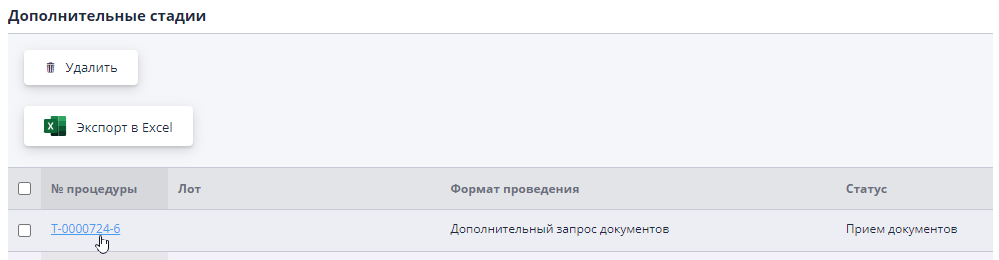
The created project can be found on the trading procedure page in the section "Additional stages."
In the “Draft Notification” status, any additional stage can be deleted by button of the same name.After publication for the additional document request stage Only cancellation is available with a mandatory indication of the reason.
Let's take a closer look at creating and conducting additional document requests.
Configuring additional document request
Before publishing the additional document request stage, it is necessary to complete it setup - set the timing for it and select the requirements for documents.
The basic information indicates the closing date for submitting applications - if Once this date is reached, the acceptance of applications for participation in the stage will be completed.
In the “Requirements for participant documents” section, you should specify what types documents will be requested as part of the application for participation.The document can be add manually using the button "Create", "Select document types" from the document journal or “Select a group of documents”:
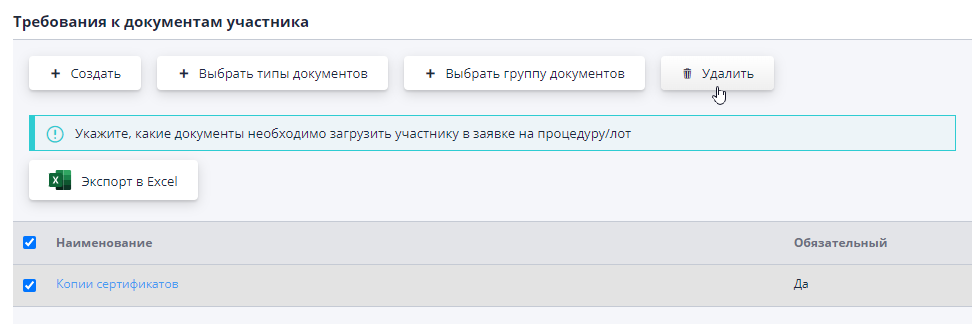
By default, all added documents will be required to be uploaded participant in his application.To change this, just click on link in the name of the document type and uncheck the box in the dialog that opens "Required":
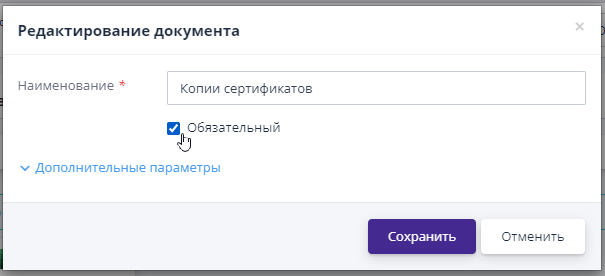
After editing the document re-request stage, you must save changes by clicking on the "Save" button in the top menu.
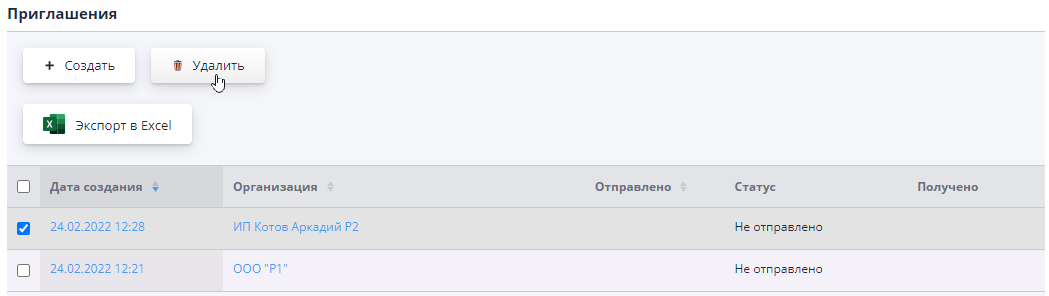
Invitations
On the “Participants” tab you can see the list of participants who invitations have been created for the additional document request stage:
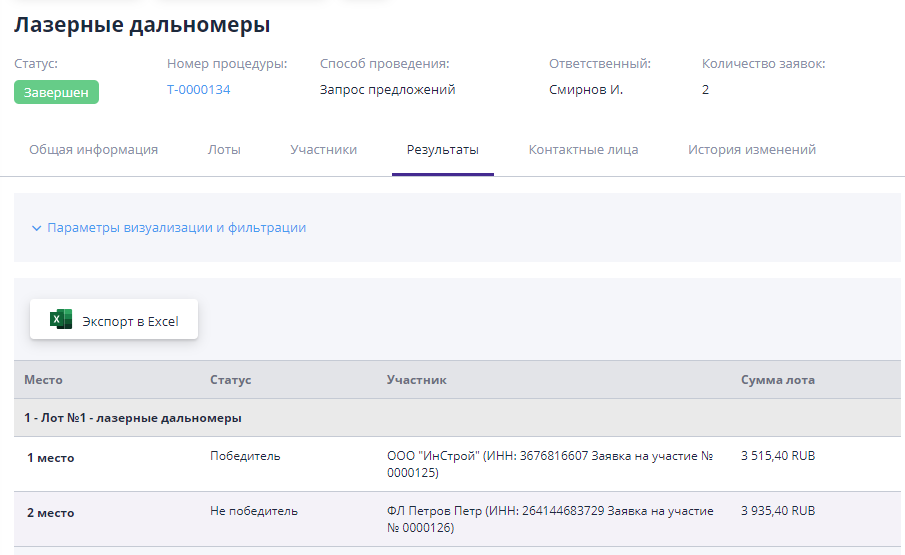
By clicking the "Create" button you can add invitations for companies admitted to participate in the main stage of bidding, but not selected at the stage creating additional document requests:
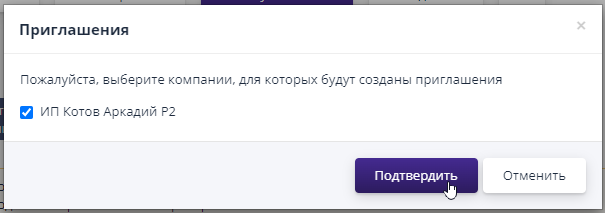
An invitation can be deleted by selecting it and clicking on the corresponding button:
Publication and additional request for documents
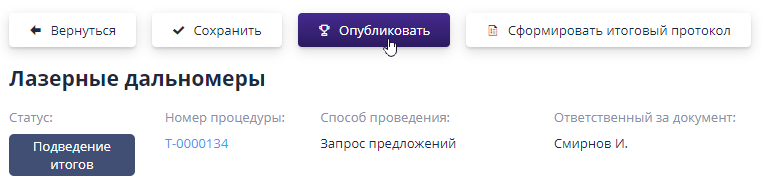
After filling out the information for the stage, you can “Publish”:

Invited participants are sent information on the new stage by email in their personal account and by email.
The published additional request for documents will be available in the block "Additional stages" on the page of the procedure by which it was created. You can go to the stage page using the link in its number:
Immediately after publication, participants will be able to submit applications by attaching relevant documents.Applications will be available for viewing to the organizer immediately after submission.
Acceptance of applications is completed manually using the appropriate button, or by time.After which the additional request for documents will change to the “Completed” status.
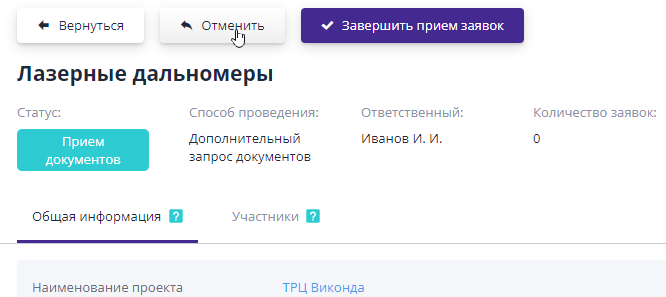
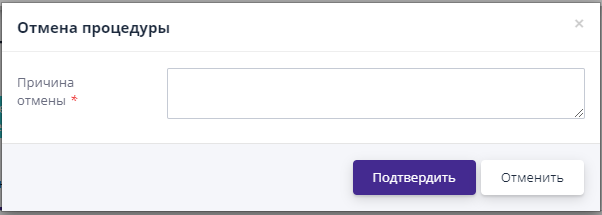
If necessary, additional request for documents can be canceled before The acceptance of applications will end.To do this, on the stage view page you should click on the “Cancel” button, indicate the reason for canceling the stage and confirm action:
Working with the data of a received application for participation in a further request for documents
After publication, the additional request for documents will switch to the status “Accepting applications.Induring the application period, participants can submit and withdraw their applications for participation in the procedure, and the organizer can view them and request additional information if necessary.
Information about participants is located on the “Participants” tab.Here you can view information on the current status of the application participants and work with invitations.
The “Counterparties” block provides information about participants: statuses applications and invitations.
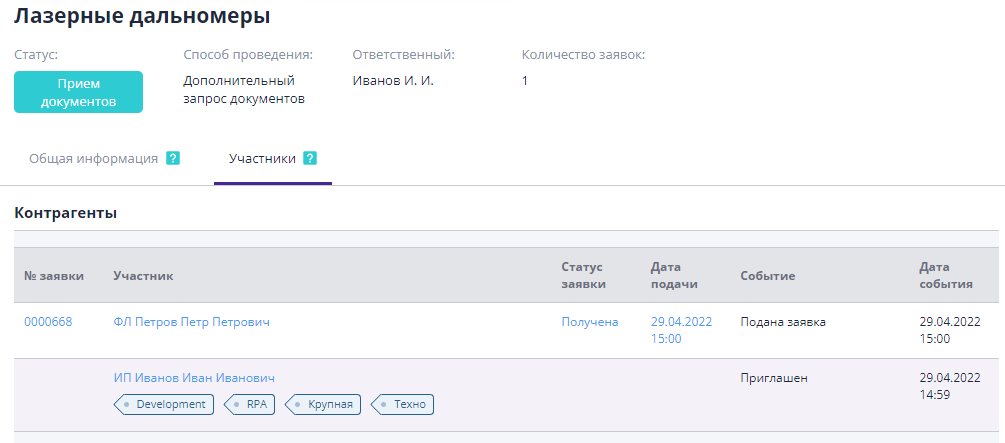
-
No. - column contains the number and link to the application received from bidder.
-
Participant - displays the name of the participant’s company and a link to page for viewing information about the organization.
-
Application status - displays the status of the application for participation from the moment it was submitted creation by the counterparty.
-
Submission date - the date of submission of the application for participation.
-
Event - the current status of work with the participant.Events are displayed by invitation and by application for participation.
-
Event date - date of last status change.
Let's take a closer look at working with information for each column.
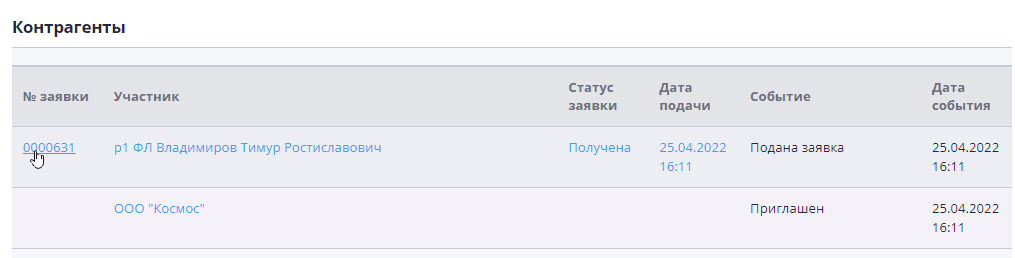
You can go to view a specific application using the link in columns "No", "Application Status" or "Submission Date":
The application is divided into logical parts by tabs.
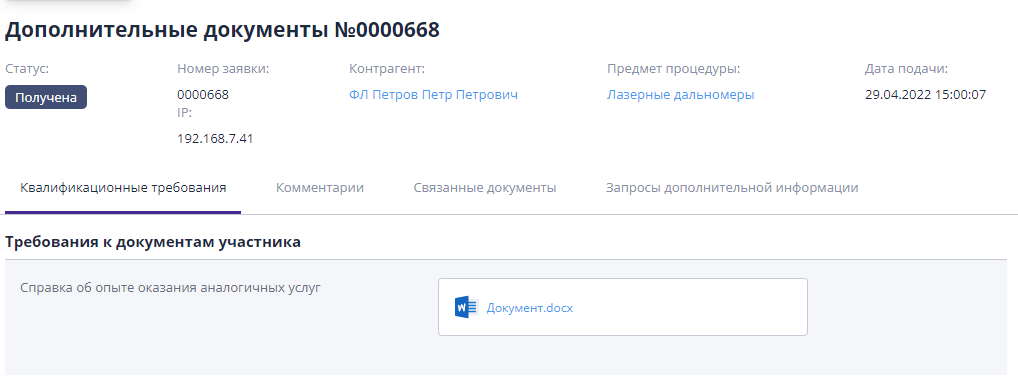
The “Qualification requirements” tab contains a package of documents, requested by the organizer at the stage of additional document request.
On the “Comment” tab you can view all previously left comments or add a new comment on the application.
The "Related Documents" tab contains all documents from the section “Document flow” related to this application.
The "Requests for additional information" tab is used when there are comments on the application, clarification of any information is required or additional supporting documents are required (details on how to request additional information are described in Section “View the data of the received application, request additional information").